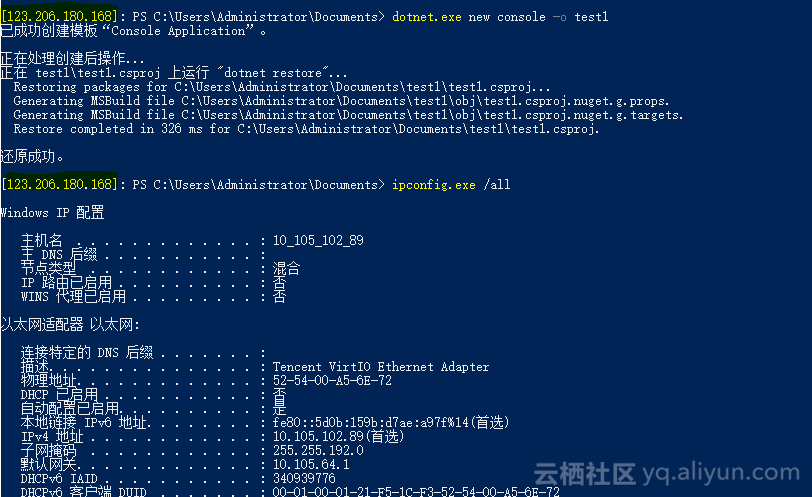
通过PowerShell远程连接到Windows
1、目标Windows配置
远程连接到目标Windows服务器,以管理员身份运行PowerShell,执行以下命令开启服务
Enable-PSRemoting
然后一路确定。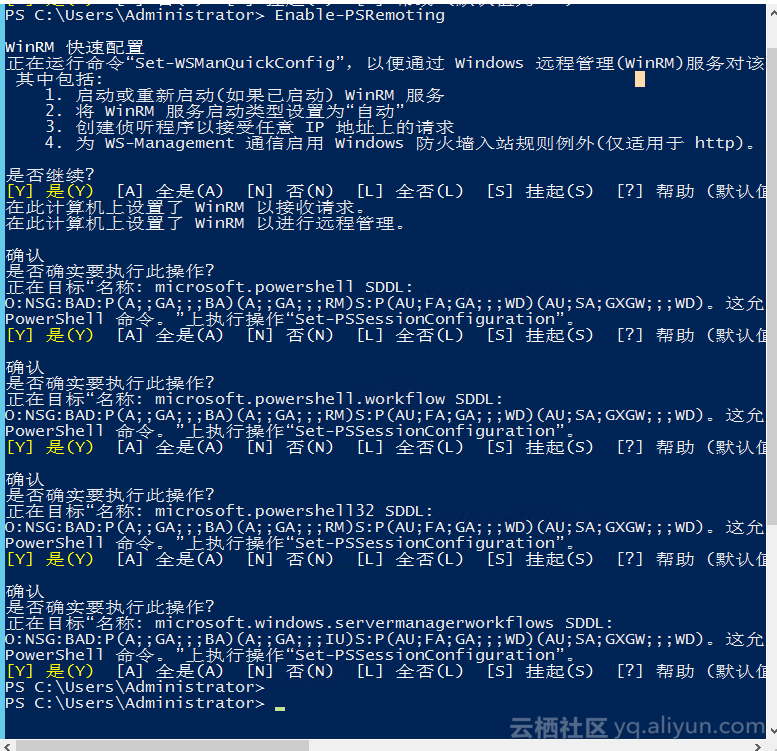
开启服务后,设置谁可以通过PowerShell连接到本服务器,执行以下命令
Set-Item wsman:\localhost\Client\Trustedhosts $ip
其中ip为本地的IP地址。如果你的IP地址不稳定,可执行
Set-Item wsman:\localhost\Client\Trustedhosts *
再执行以下命令
Test-WSMan $ip #本地或云服务器上
Test-WSMan localhost #云服务器上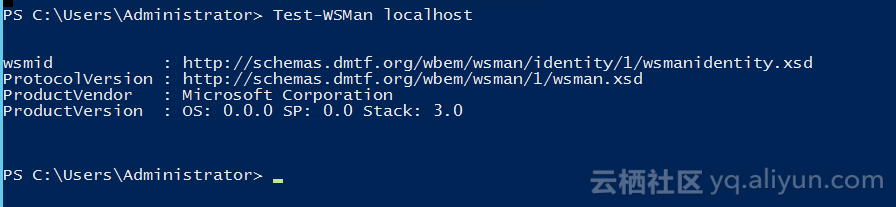
这样就在云端设置成功了。
2、本地Windows配置
以管理员身份运行PowerShell,执行以下命令
Enable-PSRemoting
然后一直确定。效果如上图。
如果出现了网络不安全的错误提示,可添加执行以下命令
Enable-PSRemoting -SkipNetworkProfileCheck设置可以远程的IP地址,出于安全考虑,建议执行以下命令
Set-Item WSMan:\localhost\Client\Trustedhosts $serverIP#只有一个服务器
Set-Item WSMan:\localhost\Client\Trustedhosts "$serverIP1,$serverIP2,..."#有多个服务器
3、通过命令行远程连接
Enter-PSSession -computer $ip 会出现以下窗口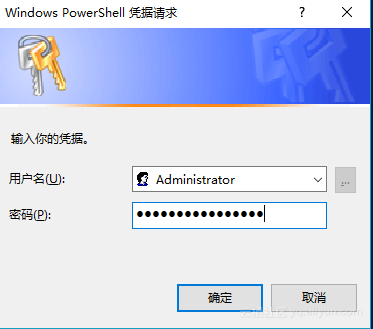
输入用户名和密码后即可登陆。实际效果如下