xml 布局文件在 Android 开发中是必不可以少的一部分,开发者对里面 android 前缀的属性非常熟悉,android:layout_width, android:layout_height,android:orientation 。这里要介绍的是另外一种一个非常实用且容易被忽略的 tools 属性。
新创建 xml 布局文件的时候,你可能会发现在布局根元素里默认添加了 tools 相关的属性 xmlns:tools ,tools:context
<android.support.constraint.ConstraintLayout xmlns:android="http://schemas.android.com/apk/res/android"
    xmlns:tools="http://schemas.android.com/tools"
    android:layout_width="match_parent"
    android:layout_height="match_parent"
    tools:context="com.mvp.viewdemo.TestActivity">

</android.support.constraint.ConstraintLayout>
如果删掉 tools 相关的属性的时候,并不会引起编译问题跟布局预览问题,也不会影响代码的执行。那么这个属性到底有什么用?好,先挖个坑,下面再填坑。
tools 相关的属性大致分为三类:
- 解决指定的 Lint 的警告提示
- 强化 xml 布局预览属性
- 资源缩减属性。
解决指定的 Lint 的警告提示
解决lint警告提示的 tools 属性有 tools:ignore,tools:targetApi,tools:locale,分别用于忽略指定的 lint 异常警告提示,申明控件的运行系统版本,申明资源文件的语言条件。
tools:ignore
用于忽略指定的 lint 异常警告提示。我们经常会用 Android studio 里面的功能 Analyze -> Inspect Code 检查项目中可能存在的问题,但是有些警告只是官方规范建议,并不是真的存在潜在bug,如果要解决这类问题可以使用tools:ignore 来忽略一些异常警告提示。
比如经常出现的 Image without contentDescription 异常警告
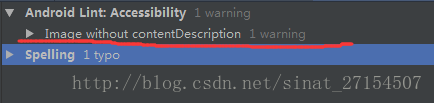
这是因为 ImageView 属性少加了 android:contentDescription 但是实际开发中一般很少去添加这个属性。在布局的根元素添加 xmlns:tools="http://schemas.android.com/tools" tools:ignore="ContentDescription",便可以忽略这个警告提示
<?xml version="1.0" encoding="utf-8"?>
<android.support.constraint.ConstraintLayout xmlns:android="http://schemas.android.com/apk/res/android"
    xmlns:tools="http://schemas.android.com/tools"
    tools:ignore="ContentDescription"
    android:layout_width="match_parent"
    android:layout_height="match_parent"
    tools:context="com.mvp.viewdemo.TestActivity"

    <ImageView
        android:layout_width="wrap_content"
        android:layout_height="wrap_content" />

</android.support.constraint.ConstraintLayout>
如果有多个指定异常需要进行忽略的情况,只需要在用逗号分割即可。例如
tools:ignore="ContentDescription,UselessParent"。关于lint 警告的类型可通过文档查找相关对应类型tools.android.com/tips/lint-c…
tools:targetApi
用于忽略控件高版本引发的 lint 异常警告提示。如果你在布局中使用高于项目的最低版本的属性或者控件, lint 就发出警告。比如,在最低版本是14的项目中使用了26版本才的新增的android:layout_marginHorizontal
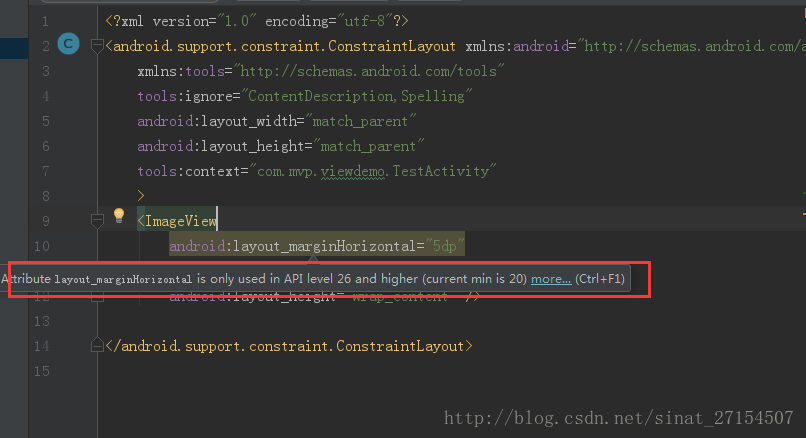
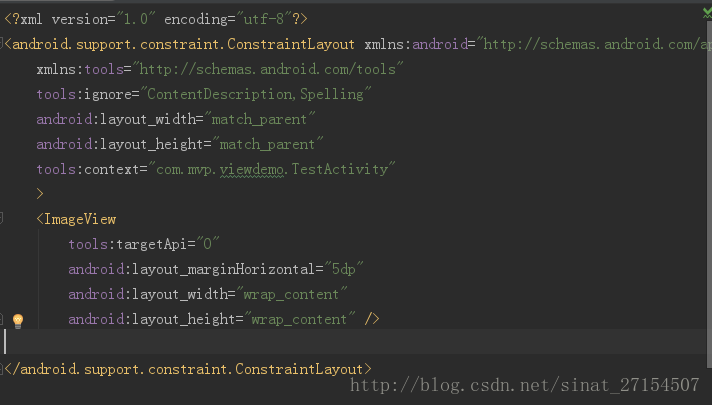
如果我们已经确认这个布局肯定是26版本中使用的,不会低版本中使用的时候,我们就使用可以tools:targetApi="26" 去消除这个警告。
tools:locale
用于声明资源文件的运行语言环境。很多时候都会出现一些拼写异常的警告,虽然这些警告可以说不痛不痒,如果要解决这个问题,只要我们把这个资源的运行设置成非英文类型即可。更多使用于资源文件的根元素。比如:
<resources xmlns:tools="http://schemas.android.com/tools" tools:locale="es">这段代码意思就是将该资源文件的语言运行环境设置成西班牙而不是默认英文。
强化 xml 布局预览属性
tools 显示 android 属性
用于预览界面显示而不影响实际代码显示。在实际开发中,我们编写界面的时候,为了预览界面显示效果,我们会使用一些测试数据来填充。但是这会引发一个问题,就是你设置这些测试数据后,没有将这些测试数据的值清理,又在运行中没有业务数据去填充这些值,在实际运行界面中就会显示这些测试数据。就算我们及时清理那些测试数据,这个界面就显得白茫茫一篇,如果布局比较复杂嵌套比较深,你甚至很难定位到你想要的控件。这时候我们就可以用 tools 前缀去显示 android 前缀的属性。
看代码:
<?xml version="1.0" encoding="utf-8"?>
<android.support.constraint.ConstraintLayout xmlns:android="http://schemas.android.com/apk/res/android"
    xmlns:tools="http://schemas.android.com/tools"
    android:layout_width="match_parent"
    android:layout_height="match_parent"
    tools:context="com.mvp.viewdemo.TestActivity"
    tools:ignore="ContentDescription,Spelling">


    <LinearLayout
        android:layout_width="wrap_content"
        android:layout_height="wrap_content"
        android:orientation="vertical">

        <TextView
            android:layout_width="wrap_content"
            android:layout_height="wrap_content"
            tools:background="@color/colorAccent"
            tools:text="大王来巡山2" />

        <ImageView
            android:layout_width="wrap_content"
            android:layout_height="wrap_content"
            tools:src="@mipmap/ic_launcher"
            />

        <CheckBox
            android:layout_width="wrap_content"
            android:layout_height="wrap_content"
            tools:checked="true"
            />

    </LinearLayout>
</android.support.constraint.ConstraintLayout>
在以上代码中,我们在 TextView 控件 background,text ,ImageView控件的src,CheckBox控件的checked 都加上了tools的前缀。在预览界面中显示情况是:
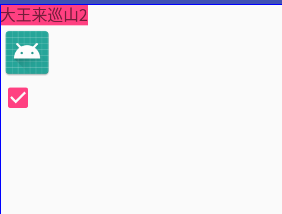
跟我们用 android 前缀使用情况是一样的,但是这些属性的值在运行的时候并不会出现。当然,tools 可以显示的属性并不止这几个,它能显示所有以 android 前缀开头的属性。
tools:context
使该布局预览的主题与指定的 activity 主题一致(这就是我们在文章最开始的挖的坑,现在填坑)。在布局的根元素添加tools:context=".activity名字" 即可。
tools:layout
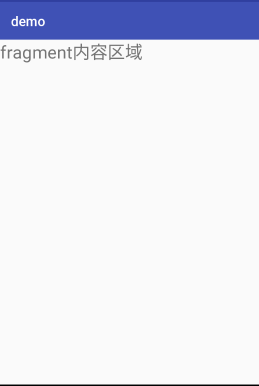
使该布局的 fragment 填充布局预览。因为 fragment 只能在 Java 代码中填充布局,如果不编译运行是无法看到 fragment 布局情况,这个属性就可以帮助 fragment 显示需要填充的界面。注意的是,这个布局并不会真正带入到编译中去,只是帮助显示预览而已。
看下代码:
<?xml version="1.0" encoding="utf-8"?>
<android.support.constraint.ConstraintLayout xmlns:android="http://schemas.android.com/apk/res/android"
    xmlns:tools="http://schemas.android.com/tools"
    android:layout_width="match_parent"
    android:layout_height="match_parent"
    tools:ignore="ContentDescription,Spelling">


      <fragment
            android:name="com.mvp.viewdemo.TestFragment"
            tools:layout="@layout/fragment_content"
            android:layout_width="match_parent"
            android:layout_height="80dp"/>

</android.support.constraint.ConstraintLayout>
这时候 IDE 右边的预览界面即可显示 fragment 的布局
tools:listitem / tools:listheader / tools:listfooter
使该布局的 ListView 填充 item ,header,footer 布局预览。这个属性的作用跟 tools:layout 作用的是类似的,只是这个属性只作用于 ListView。 (tools:listitem 也可以作用于RecycleView)。
<?xml version="1.0" encoding="utf-8"?>
<LinearLayout xmlns:android="http://schemas.android.com/apk/res/android"
    xmlns:tools="http://schemas.android.com/tools"
    android:layout_width="match_parent"
    android:layout_height="wrap_content">


    <ListView
        android:id="@android:id/list"
        android:layout_width="match_parent"
        android:layout_height="wrap_content"
        tools:listfooter="@layout/list_footer"
        tools:listheader="@layout/list_header"
        tools:listitem="@layout/item_content" />

</LinearLayout>
PS : 需要给ListView /RecycleView 添加上 id 不然预览布局无法生效。
tools:showIn
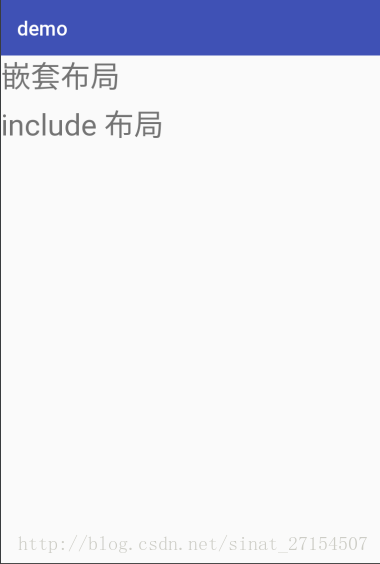
使 include 布局预览显示嵌套布局的界面。在include 的布局上添加 tools:showIn="@layout/嵌套布局名字",即可显示嵌套布局的预览情况。
<?xml version="1.0" encoding="utf-8"?>
<android.support.constraint.ConstraintLayout xmlns:android="http://schemas.android.com/apk/res/android"
    android:layout_width="match_parent"
    xmlns:tools="http://schemas.android.com/tools"
    tools:showIn="@layout/activity_test"
    android:layout_height="match_parent">

    <TextView
        android:textSize="30sp"
        android:text="include 布局"
        android:layout_width="wrap_content"
        android:layout_height="wrap_content" />

</android.support.constraint.ConstraintLayout>
在预览界面显示的是嵌套布局整体界面
资源缩减属性
tools:shrinkMode
开启严格引用检查。我们在 res/raw/keep.xml 文件里面,设置是否启用严格引用检查。
<?xml version="1.0" encoding="utf-8"?>
<resources xmlns:tools="http://schemas.android.com/tools"
    tools:shrinkMode="strict" />
shrinkMode 有两种模式,一种是 safe,一种是strict,默认情况是safe。
-
shrinkMode 是 safe 的情况下:
当我们开启shrinkResources true的时候,gradle 的资源缩减器就会清除无用资源文件,如果是间接引用的资源则不清理,比如Resources.getIdentifier()。 -
shrinkMode 是 strict的情况下:
当我们开启shrinkResources true的时候,gradle 的资源缩减器就会清除无用资源文件,但是间接引用的资源则不清理,比如Resources.getIdentifier()。
如果我们需要开启 strict 默认的情况,需要保留简洁引用的资源文件的话,则需要在 keep.xml 保留指定资源文件。下面会详解。
tools:keep
指定保留资源。在 gradle 开启了 shrinkResources true,并且 shrinkMode 是 strict 模式情况,如果一些资源文件不是直接引用的,而是间接引用的也会收到清理,比如我们用 Resources.getIdentifier() 动态去获取指定资源 ID。如果想要这些文件不受 lint 资源清理的影响,可以在keep.xml 文件,指定保留无需清理的 xml 文件。
<?xml version="1.0" encoding="utf-8"?>
<resources xmlns:tools="http://schemas.android.com/tools"
    tools:shrinkMode="strict"
    tools:keep="@layout/test_1,@layout/test_2,@layout/*_3" />
多个文件只需要用逗号分隔,并且支持星号作为通配符。
tools:discard
指定资源缩减。这个功能跟tools:keep 刚好是相反的,我们可以指定某些资源可以被清理掉。通常是用于资源文件在代码中已经被引用,但实际清理掉也不影响代码执行的情况,或者 gradle 插件判断错误情况下。可能你会认为这个功能看起来很鸡肋,好像还不如删掉直截了当,但是在某些场景下却非常有用,比如构建多个 Variant 的时候。
<?xml version="1.0" encoding="utf-8"?>
<resources xmlns:tools="http://schemas.android.com/tools"
    tools:discard="@layout/unused" />