编辑推荐:稀土掘金,这是一个针对技术开发者的一个应用,你可以在掘金上获取最新最优质的技术干货,不仅仅是Android知识、前端、后端以至于产品和设计都有涉猎,想成为全栈工程师的朋友不要错过!
什么是Bottom Sheet?
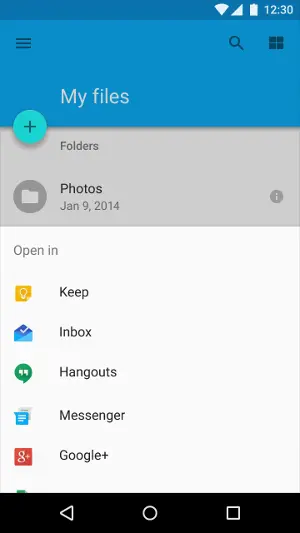
Bottom Sheet是Design Support Library23.2 版本引入的一个类似于对话框的控件,可以暂且叫做底部弹出框吧。 Bottom Sheet中的内容默认是隐藏起来的,只显示很小一部分,可以通过在代码中设置其状态或者手势操作将其完全展开,或者完全隐藏,或者部分隐藏。对于Bottom Sheet的描述可以在官网查询:material.io/guidelines/…
其实在 Bottom Sheet出现之前已经有人实现了相同的功能,最早的一个可靠版本应该是AndroidSlidingUpPanel,当然它实现的原理跟谷歌的方式完全不一样。
Bottom Sheet的类型
有两种类型的Bottom Sheet:
1.Persistent bottom sheet :- 通常用于显示主界面之外的额外信息,它是主界面的一部分,只不过默认被隐藏了,其深度(elevation)跟主界面处于同一级别;还有一个重要特点是在Persistent bottom sheet打开的时候,主界面仍然是可以操作的。ps:Persistent bottom sheet该如何翻译呢?我觉得翻译为普通bottom sheet就好了,还看到有人翻译为“常驻bottom sheet”,可能更接近于英语的字面意思,可是反而不易理解。
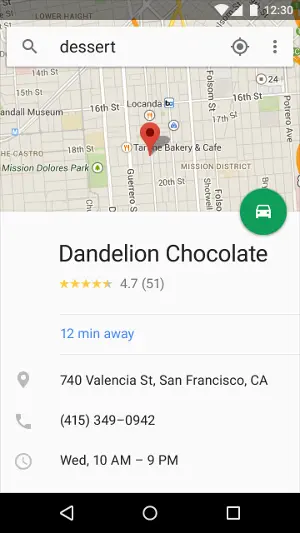
2.模态bottom sheet :- 顾名思义,模态的bottom sheet在打开的时候会阻止和主界面的交互,并且在视觉上会在bottom sheet背后加一层半透明的阴影,使得看上去深度(elevation)更深。
总结起来这两种Bottom Sheet的区别主要在于视觉和交互上,当然适用方法也是不一样的。
基本用法
不管是普通bottom sheet还是模态的bottom sheet,都需要依赖:
dependencies {
        ...
        compile 'com.android.support:design:24.1.1'
    }
当然现在的app一般都要依赖这个兼容库,版本号只要保证是在23.2.0及其以后就可以了。
Persistent bottom sheet的用法
其实Persistent bottom sheet不能算是一个控件,因为它只是一个普通的布局在CoordinatorLayout这个布局之下所表现出来的特殊行为。所以其使用方式跟普通的控件也很不一样,它必须在CoordinatorLayout中,并且是CoordinatorLayout的直接子view。
定义主界面与bottom sheet的布局

为了让xml代码看起来不那么长,我们把布局分为content_main和content_bottom_sheet两部分,content_main主要是一些按钮,用于切换bottom sheet的状态,content_bottom_sheet才是bottom sheet的内容。
<?xml version="1.0" encoding="utf-8"?>
    <android.support.design.widget.CoordinatorLayout xmlns:android="http://schemas.android.com/apk/res/android"
        xmlns:app="http://schemas.android.com/apk/res-auto"
        xmlns:tools="http://schemas.android.com/tools"
        android:layout_width="match_parent"
        android:layout_height="match_parent"
        android:fitsSystemWindows="true"
        tools:context="com.androidtutorialshub.bottomsheets.MainActivity">

        <android.support.design.widget.AppBarLayout
            android:layout_width="match_parent"
            android:layout_height="wrap_content"
            android:theme="@style/AppTheme.AppBarOverlay">

            <android.support.v7.widget.Toolbar
                android:id="@+id/toolbar"
                android:layout_width="match_parent"
                android:layout_height="?attr/actionBarSize"
                android:background="?attr/colorPrimary"
                app:popupTheme="@style/AppTheme.PopupOverlay" />

        </android.support.design.widget.AppBarLayout>

        <!-- Main Content -->
        <include layout="@layout/content_main" />

        <!-- Bottom Sheet Content -->
        <include layout="@layout/content_bottom_sheet" />


    </android.support.design.widget.CoordinatorLayout>
content_main.xml
<?xml version="1.0" encoding="utf-8"?>
    <RelativeLayout xmlns:android="http://schemas.android.com/apk/res/android"
        xmlns:app="http://schemas.android.com/apk/res-auto"
        xmlns:tools="http://schemas.android.com/tools"
        android:layout_width="match_parent"
        android:layout_height="match_parent"
        android:paddingBottom="@dimen/activity_vertical_margin"
        android:paddingLeft="@dimen/activity_horizontal_margin"
        android:paddingRight="@dimen/activity_horizontal_margin"
        android:paddingTop="@dimen/activity_vertical_margin"
        app:layout_behavior="@string/appbar_scrolling_view_behavior"
        tools:context="com.androidtutorialshub.bottomsheets.MainActivity"
        tools:showIn="@layout/activity_main">

        <Button
            android:id="@+id/expand_bottom_sheet_button"
            android:layout_width="match_parent"
            android:layout_height="wrap_content"
            android:text="@string/text_expand_bottom_sheet" />
        <Button
            android:id="@+id/collapse_bottom_sheet_button"
            android:layout_width="match_parent"
            android:layout_height="wrap_content"
            android:layout_below="@+id/expand_bottom_sheet_button"
            android:text="@string/text_collapse_bottom_sheet" />
        <Button
            android:id="@+id/hide_bottom_sheet_button"
            android:layout_width="match_parent"
            android:layout_height="wrap_content"
            android:layout_below="@+id/collapse_bottom_sheet_button"
            android:text="@string/text_hide_bottom_sheet" />
        <Button
            android:id="@+id/show_bottom_sheet_dialog_button"
            android:layout_width="match_parent"
            android:layout_height="wrap_content"
            android:layout_below="@+id/hide_bottom_sheet_button"
            android:text="@string/text_show_bottom_sheet_dialog" />
    </RelativeLayout>
content_bottom_sheet.xml
这里定义的布局就是bottom sheet的界面。这里是一个相对布局,其实你可以定义任意布局,唯一的要求是需要定义app:layout_behavior="@string/bottom_sheet_behavior",定义了这个属性就相当于告诉了CoordinatorLayout这个布局是一个bottom sheet,它的显示和交互都和普通的view不同。@string/bottom_sheet_behavior是一个定义在支持库中的字符串,等效于android.support.design.widget.BottomSheetBehavior。
< ?xml version="1.0" encoding="utf-8"?>
< RelativeLayout xmlns:android="http://schemas.android.com/apk/res/android"
    xmlns:app="http://schemas.android.com/apk/res-auto"
    android:id="@+id/bottomSheetLayout"
    android:layout_width="match_parent"
    android:layout_height="300dp"
    android:background="@android:color/holo_orange_light"
    android:padding="@dimen/activity_vertical_margin"
    app:behavior_hideable="true"
    app:behavior_peekHeight="60dp"
    app:layout_behavior="@string/bottom_sheet_behavior">

    < TextView
        android:id="@+id/bottomSheetHeading"
        android:layout_width="match_parent"
        android:layout_height="wrap_content"
        android:text="@string/text_expand_me"
        android:textAppearance="@android:style/TextAppearance.Large" />

    < TextView
        android:layout_width="wrap_content"
        android:layout_height="wrap_content"
        android:layout_below="@id/bottomSheetHeading"
        android:layout_centerHorizontal="true"
        android:layout_marginTop="@dimen/activity_horizontal_margin"
        android:text="@string/text_welcome_message"
        android:textAppearance="@android:style/TextAppearance.Large" />
< /RelativeLayout>
其实你还可以看到这里除了app:layout_behavior之外,还有两个属性
    app:behavior_hideable="true"
        app:behavior_peekHeight="60dp"
其中app:behavior_hideable="true"表示你可以让bottom sheet完全隐藏,默认为false;app:behavior_peekHeight="60dp"表示当为STATE_COLLAPSED(折叠)状态的时候bottom sheet残留的高度,默认为0。
当我们按照上面得代码配置好布局之后,其实一个bottom sheet就已经完成了,在CoordinatorLayout和bottom_sheet_behavior的共同作用下,content_bottom_sheet布局就成了一个bottom sheet, 但是我们还需要知道如何控制它。
控制Persistent bottom sheet
我们在MainActivity.java中添加一些代码,以处理bottom sheet,以及监听bottom sheet状态变化。
bottom sheet有以下5种状态
-
STATE_COLLAPSED: 默认的折叠状态, bottom sheets只在底部显示一部分布局。显示高度可以通过 app:behavior_peekHeight 设置(默认是0)
-
STATE_DRAGGING : 过渡状态,此时用户正在向上或者向下拖动bottom sheet
-
STATE_SETTLING: 视图从脱离手指自由滑动到最终停下的这一小段时间
-
STATE_EXPANDED: bottom sheet 处于完全展开的状态:当bottom sheet的高度低于CoordinatorLayout容器时,整个bottom sheet都可见;或者CoordinatorLayout容器已经被bottom sheet填满。
-
STATE_HIDDEN : 默认无此状态(可通过app:behavior_hideable 启用此状态),启用后用户将能通过向下滑动完全隐藏 bottom sheet
bottom sheet的状态是通过BottomSheetBehavior来设置的,因此需要先得到BottomSheetBehavior对象,然后调用BottomSheetBehavior.setState()来设置状态,比如设置为折叠状态:
BottomSheetBehavior.setState(BottomSheetBehavior.STATE_COLLAPSED);我们还可以通过BottomSheetBehavior.getState() 来获得状态。
要监听bottom sheet的状态变化则使用setBottomSheetCallback方法,之所以需要监听是因为bottom sheet的状态还可以通过手势来改变。
具体使用见下面的代码:
MainActivity.java
package com.androidtutorialshub.bottomsheets;

    import android.os.Bundle;
    import android.support.design.widget.BottomSheetBehavior;
    import android.support.v7.app.AppCompatActivity;
    import android.support.v7.widget.Toolbar;
    import android.util.Log;
    import android.view.View;
    import android.widget.Button;
    import android.widget.TextView;

    public class MainActivity extends AppCompatActivity implements View.OnClickListener {

        // BottomSheetBehavior variable
        private BottomSheetBehavior bottomSheetBehavior;

        // TextView variable
        private TextView bottomSheetHeading;

        // Button variables
        private Button expandBottomSheetButton;
        private Button collapseBottomSheetButton;
        private Button hideBottomSheetButton;
        private Button showBottomSheetDialogButton;

        @Override
        protected void onCreate(Bundle savedInstanceState) {
            super.onCreate(savedInstanceState);
            setContentView(R.layout.activity_main);

            initViews();
            initListeners();


        }

        /**
         * method to initialize the views
         */
        private void initViews() {
            Toolbar toolbar = (Toolbar) findViewById(R.id.toolbar);
            setSupportActionBar(toolbar);

            bottomSheetBehavior = BottomSheetBehavior.from(findViewById(R.id.bottomSheetLayout));
            bottomSheetHeading = (TextView) findViewById(R.id.bottomSheetHeading);
            expandBottomSheetButton = (Button) findViewById(R.id.expand_bottom_sheet_button);
            collapseBottomSheetButton = (Button) findViewById(R.id.collapse_bottom_sheet_button);
            hideBottomSheetButton = (Button) findViewById(R.id.hide_bottom_sheet_button);
            showBottomSheetDialogButton = (Button) findViewById(R.id.show_bottom_sheet_dialog_button);


        }


        /**
         * method to initialize the listeners
         */
        private void initListeners() {
            // register the listener for button click
            expandBottomSheetButton.setOnClickListener(this);
            collapseBottomSheetButton.setOnClickListener(this);
            hideBottomSheetButton.setOnClickListener(this);
            showBottomSheetDialogButton.setOnClickListener(this);

            // Capturing the callbacks for bottom sheet
            bottomSheetBehavior.setBottomSheetCallback(new BottomSheetBehavior.BottomSheetCallback() {
                @Override
                public void onStateChanged(View bottomSheet, int newState) {

                    if (newState == BottomSheetBehavior.STATE_EXPANDED) {
                        bottomSheetHeading.setText(getString(R.string.text_collapse_me));
                    } else {
                        bottomSheetHeading.setText(getString(R.string.text_expand_me));
                    }

                    // Check Logs to see how bottom sheets behaves
                    switch (newState) {
                        case BottomSheetBehavior.STATE_COLLAPSED:
                            Log.e("Bottom Sheet Behaviour", "STATE_COLLAPSED");
                            break;
                        case BottomSheetBehavior.STATE_DRAGGING:
                            Log.e("Bottom Sheet Behaviour", "STATE_DRAGGING");
                            break;
                        case BottomSheetBehavior.STATE_EXPANDED:
                            Log.e("Bottom Sheet Behaviour", "STATE_EXPANDED");
                            break;
                        case BottomSheetBehavior.STATE_HIDDEN:
                            Log.e("Bottom Sheet Behaviour", "STATE_HIDDEN");
                            break;
                        case BottomSheetBehavior.STATE_SETTLING:
                            Log.e("Bottom Sheet Behaviour", "STATE_SETTLING");
                            break;
                    }
                }


                @Override
                public void onSlide(View bottomSheet, float slideOffset) {

                }
            });


        }

        /**
         * onClick Listener to capture button click
         *
         * @param v
         */
        @Override
        public void onClick(View v) {
            switch (v.getId()) {
                case R.id.collapse_bottom_sheet_button:
                    // Collapsing the bottom sheet
                    bottomSheetBehavior.setState(BottomSheetBehavior.STATE_COLLAPSED);
                    break;
                case R.id.expand_bottom_sheet_button:
                    // Expanding the bottom sheet
                    bottomSheetBehavior.setState(BottomSheetBehavior.STATE_EXPANDED);
                    break;
                case R.id.hide_bottom_sheet_button:
                    // Hiding the bottom sheet
                    bottomSheetBehavior.setState(BottomSheetBehavior.STATE_HIDDEN);
                    break;
                case R.id.show_bottom_sheet_dialog_button:

                    break;

            }
        }
    }
模态bottom sheet的用法
模态bottom sheet用法跟传统的dialog很类似,它是一个BottomSheetDialogFragment。
首先定义好BottomSheetDialogFragment的布局:
<?xml version="1.0" encoding="utf-8"?>
    <RelativeLayout xmlns:android="http://schemas.android.com/apk/res/android"
        xmlns:app="http://schemas.android.com/apk/res-auto"
        android:id="@+id/bottomSheetLayout"
        android:layout_width="match_parent"
        android:layout_height="300dp"
        android:background="@android:color/holo_red_light"
        android:padding="@dimen/activity_vertical_margin"
     >

        <TextView
            android:id="@+id/bottomSheetHeading"
            android:layout_width="match_parent"
            android:layout_height="wrap_content"
            android:text="@string/text_dialog_bottom_sheet"
            android:textAppearance="@android:style/TextAppearance.Large" />

        <TextView
            android:layout_width="wrap_content"
            android:layout_height="wrap_content"
            android:layout_below="@id/bottomSheetHeading"
            android:layout_centerHorizontal="true"
            android:layout_marginTop="@dimen/activity_horizontal_margin"
            android:text="@string/text_welcome_message"
            android:textAppearance="@android:style/TextAppearance.Large" />
    </RelativeLayout>
注意这里不再需要定义behavior 和peekHeight之类的东西了。
创建一个继承了BottomSheetDialogFragment的CustomBottomSheetDialogFragment 类,在onCreateView方法中把上面的布局传递进去
package com.androidtutorialshub.bottomsheets;

    import android.os.Bundle;
    import android.support.design.widget.BottomSheetDialogFragment;
    import android.view.LayoutInflater;
    import android.view.View;
    import android.view.ViewGroup;

    public class CustomBottomSheetDialogFragment extends BottomSheetDialogFragment {
        @Override
        public View onCreateView(LayoutInflater inflater, ViewGroup container, Bundle savedInstanceState) {
            View v = inflater.inflate(R.layout.content_dialog_bottom_sheet, container, false);
            return v;
        }

    }
显示这个模态的bottom sheet
new CustomBottomSheetDialogFragment().show(getSupportFragmentManager(), "Dialog");与普通bottom sheet不同的是我们不需要处理它的状态了,因为它跟普通bottom sheet机制都不同,只有打开和关闭状态,而且是通过点击bottom sheet之外的区域来取消bottom sheet的。
总结
由此可以看到Persistent bottom sheet是最复杂的而模态bottom sheet基本没什么新东西。
在Persistent bottom sheet使用方法小节中我们是点击一个item切换一个状态,实际使用肯定不是这样,一般是点击一个按钮,在不同状态之间toggle。
为此我在上面的基础上增加一个按钮,然后在onclick中增加toggle的代码,顺便将BottomSheetDialogFragment的代码也添加到MainActivity.java中:
@Override
    public void onClick(View v) {
        switch (v.getId()) {
            case R.id.collapse_bottom_sheet_button:
                // Collapsing the bottom sheet
                bottomSheetBehavior.setState(BottomSheetBehavior.STATE_COLLAPSED);
                break;
            case R.id.expand_bottom_sheet_button:
                // Expanding the bottom sheet
                bottomSheetBehavior.setState(BottomSheetBehavior.STATE_EXPANDED);
                break;
            case R.id.hide_bottom_sheet_button:
                // Hiding the bottom sheet
                bottomSheetBehavior.setState(BottomSheetBehavior.STATE_HIDDEN);
                break;
            case R.id.show_bottom_sheet_dialog_button:
                // Opening the Dialog Bottom Sheet
                new CustomBottomSheetDialogFragment().show(getSupportFragmentManager(), "Dialog");
                break;
            case R.id.bottom_sheet_toggle:
                if(bottomSheetBehavior.getState() == BottomSheetBehavior.STATE_EXPANDED ){
                    bottomSheetBehavior.setState(BottomSheetBehavior.STATE_HIDDEN);
                } else if(bottomSheetBehavior.getState() == BottomSheetBehavior.STATE_HIDDEN || bottomSheetBehavior.getState() == BottomSheetBehavior.STATE_COLLAPSED){
                    bottomSheetBehavior.setState(BottomSheetBehavior.STATE_EXPANDED);
                }

                break;

        }
}整个demo的代码可以在github下载github.com/jianghejie/…
补充
Persistent bottom sheet xml布局中的
    app:behavior_hideable="true"
        app:behavior_peekHeight="60dp"
可以用代码实现
mBottomSheetBehavior.setHideable(true);
    mBottomSheetBehavior.setPeekHeight(300);
第三方的bottom sheet
参考文章
本文代码来自Android Material Design Bottom Sheets Tutorial一文,有修改。
其它文章参考:
www.androidauthority.com/bottom-shee…