

本文目錄 -
簡介
iOS相關函式庫
資料夾結構
程式進入點
RootViewControl:MasterViewController
XCDYouTubeKit
下載並儲存影片
播放影片
心得
參考資料
簡介
DownTube是一個可以下載Youtube影片的iOS App,但因為受限於Youtube的授權關係,本文以技術分享為主,嚴禁商業使用!
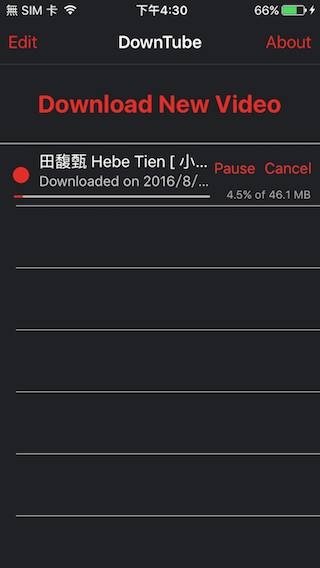
本文會以三個部分來解析”DownTube”,首先從Youtube的播放連結找出檔案的下載位址,接著開始一個新的下載工作下載的格式是mp4,有一定的儲存路徑與檔案命名原則,最後是播放影音檔案,一樣會從資料結構開始,接著根據App的執行流程解析這個專案.
專案原始碼連結 link
iOS相關函式庫
AVPlayer : AVFoundation
CoreData
NSURLSessionDownloadTask : NSURLSessionTask
資料夾結構
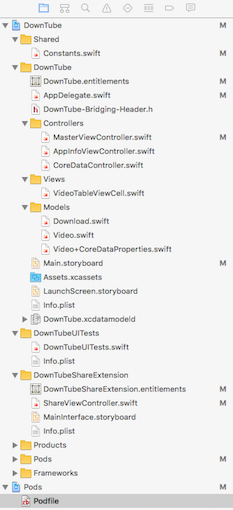
首先看到第一層的資料夾有個Podfile,表示這個專案有使用第三方的套件管理,使用的函式庫有:
- XCDYouTubeKit: 一個可以解析Youtube影片資訊的函式庫,此專案主要使用到各種解析度的檔案下載位址
- Fabric: 使用者行為統計的第三方函式褲
- Crashlytics: 蒐集App無預警崩框的訊息
- MMWormhole: App跟Extension之間溝通的函式庫
在開啟專案之前,要先在Termail下指令”pod install”把第三方函式庫加入專案中,之後再點擊”DownTube.xcworkspace”開啟專案.
開啟專案後我們看到DownTube專案內以下資料夾:
- Shared: 一個封裝NSUserDefaults的物件”Constants”
- DownTube: 本文主要分析的重點內容
- DownTubeUITests: UI測試程式碼,不解析
- DownTubeShareExtension: 這個Extension能在Safari中直接啟動DownTube下載影片
- Products: 系統自動產生,不解析
- Pods: 函式庫管理工具自動產生,不解析
- Frameworks: 系統自動產生,不解析
程式進入點
首先我們觀察AppDelegate.m,發現了三個跟系統特性是事件有關的設定:
1.設定聲音播放模式,為’AVAudioSessionCategoryPlayback’,忽略靜音鍵強制發出聲音.
do {
        try AVAudioSession.sharedInstance().setCategory(AVAudioSessionCategoryPlayback)
    } catch {
        print("Background audio not enabled")
    }
2.App結束前,將資料寫入Core Data
func applicationWillTerminate(application: UIApplication) {
    // Called when the application is about to terminate. Save data if appropriate. See also applicationDidEnterBackground:.
    // Saves changes in the application's managed object context before the application terminates.
    CoreDataController.sharedController.saveContext()
}
3.背景下載
func application(application: UIApplication, handleEventsForBackgroundURLSession identifier: String, completionHandler: () -> Void) {
    self.backgroundSessionCompletionHandler = completionHandler
}
note: 一篇關於背景下載的文章 link
另外此專案是使用Storyboard實作UI,所以看不到RootViewController的設定.
RootViewControl
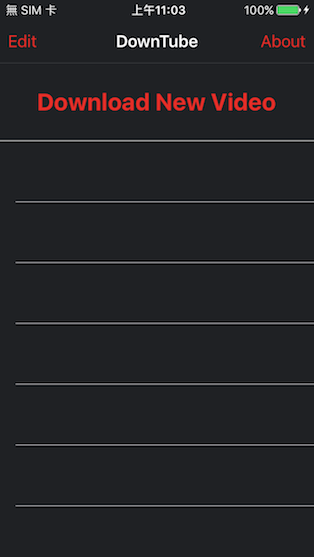
從Storyboard中可以得知,此專案的根頁面是MasterViewController,主要有兩個導覽列的按鈕(Edit,About),跟一個TableView,TableView與上方一個DownLoad New Video的按鈕,我們就從這個下載按鈕說起.
按下Download New Video按鈕會觸發一個函式”askUserForURL”:
@IBAction func askUserForURL(sender: AnyObject)
askUserForURL()是要使用者輸入Youtube影像連結,以Hebe的小幸運為例,連結是”www.youtube.com/watch?v=CFT…“
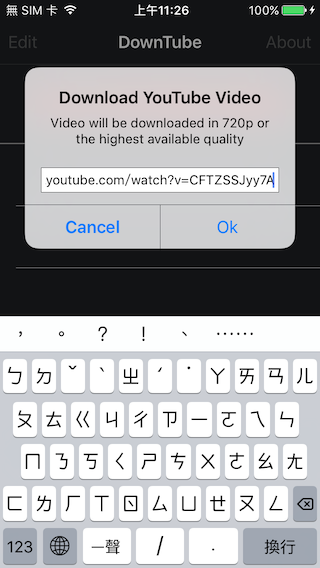
使用者輸入Youtube播放網址後會從網址列中取得這段影片的ID,以上述的範例網址影片的ID就是”CFTZSSJyy7A”,得到ID後就透過XCDYouTubeKit取得影片資訊,包括各種解析度的影片檔案位置(URL)
XCDYouTubeClient.defaultClient().getVideoWithIdentifier(String(url.characters.suffix(11))) {
video, error in
    self.videoObject(video, downloadedForVideoAt: url, error: error)
   UIApplication.sharedApplication().networkActivityIndicatorVisible = false
}
XCDYouTubeKit
Youtube官方提供了一個取得影片資訊的API(“get_video_info”),內容包括了title, thumbnail與各種解析度/檔案格式的連結…等等,以HEBE的小幸運為例:
http://www.youtube.com/get_video_info?video_id=CFTZSSJyy7A
由於回覆的資訊都是字串,而且不是標準的XML或者是JSON格式,所以利用XCDYouTubeKit將回傳的字串轉換為XCDYouTubeVideo物件:
public class XCDYouTubeVideo : NSObject, NSCopying {

    /**
     *  --------------------------------
     *  @name Accessing video properties
     *  --------------------------------
     */

    /**
     *  The 11 characters YouTube video identifier.
     */
    public var identifier: String { get }
    /**
     *  The title of the video.
     */
    public var title: String { get }
    /**
     *  The duration of the video in seconds.
     */
    public var duration: NSTimeInterval { get }

    /**
     *  A thumbnail URL for an image of small size, i.e. 120×90. May be nil.
     */
    public var smallThumbnailURL: NSURL? { get }
    /**
     *  A thumbnail URL for an image of medium size, i.e. 320×180, 480×360 or 640×480. May be nil.
     */
    public var mediumThumbnailURL: NSURL? { get }
    /**
     *  A thumbnail URL for an image of large size, i.e. 1'280×720 or 1'980×1'080. May be nil.
     */
    public var largeThumbnailURL: NSURL? { get }

    /**
     *  A dictionary of video stream URLs.
     *
     *  The keys are the YouTube [itag](https://en.wikipedia.org/wiki/YouTube#Quality_and_formats) values as `NSNumber` objects. The values are the video URLs as `NSURL` objects. There is also the special `XCDYouTubeVideoQualityHTTPLiveStreaming` key for live videos.
     *
     *  You should not store the URLs for later use since they have a limited lifetime and are bound to an IP address.
     *
     *  @see XCDYouTubeVideoQuality
     *  @see expirationDate
     */

    public var streamURLs: [NSObject : NSURL] { get }

    /**
     *  The expiration date of the video.
     *
     *  After this date, the stream URLs will not be playable. May be nil if it can not be determined, for example in live videos.
     */
    public var expirationDate: NSDate? { get }
}
一篇關於拆解YouTube URL的文章link
在XCDYouTubeKit中的Video物件只有低中高三種解析度的URL資訊,事實上不只這些解析度,讀者可以透過另外一個專案You-Get瞭解更多影片資訊.
kobeyu$ you-get -i https://www.youtube.com/watch?v=CFTZSSJyy7A
site:                YouTube
title:               田馥甄 Hebe Tien [ 小幸運 官方Live版 A Little Happiness] LIVE Version (如果 田馥甄巡迴演唱會)
streams:             # Available quality and codecs
[ DASH ] ____________________________________
- itag:          137
  container:     mp4
  quality:       1920x1080
  size:          87.2 MiB (91407373 bytes)
# download-with: you-get --itag=137 [URL]

- itag:          248
  container:     webm
  quality:       1920x1080
  size:          79.1 MiB (82939675 bytes)
# download-with: you-get --itag=248 [URL]

- itag:          136
  container:     mp4
  quality:       1280x720
  size:          46.1 MiB (48308712 bytes)
# download-with: you-get --itag=136 [URL]

- itag:          247
  container:     webm
  quality:       1280x720
  size:          39.8 MiB (41687812 bytes)
# download-with: you-get --itag=247 [URL]

- itag:          135
  container:     mp4
  quality:       854x480
  size:          25.1 MiB (26370772 bytes)
# download-with: you-get --itag=135 [URL]

- itag:          244
  container:     webm
  quality:       854x480
  size:          21.1 MiB (22146590 bytes)
# download-with: you-get --itag=244 [URL]

- itag:          134
  container:     mp4
  quality:       640x360
  size:          14.3 MiB (15000639 bytes)
# download-with: you-get --itag=134 [URL]

- itag:          243
  container:     webm
  quality:       640x360
  size:          13.9 MiB (14599703 bytes)
# download-with: you-get --itag=243 [URL]

- itag:          133
  container:     mp4
  quality:       426x240
  size:          11.9 MiB (12459119 bytes)
# download-with: you-get --itag=133 [URL]

- itag:          242
  container:     webm
  quality:       426x240
  size:          9.5 MiB (9911538 bytes)
# download-with: you-get --itag=242 [URL]

- itag:          160
  container:     mp4
  quality:       256x144
  size:          7.5 MiB (7910663 bytes)
# download-with: you-get --itag=160 [URL]

- itag:          278
  container:     webm
  quality:       256x144
  size:          7.3 MiB (7653435 bytes)
# download-with: you-get --itag=278 [URL]

[ DEFAULT ] _________________________________
- itag:          22
  container:     mp4
  quality:       hd720
  size:          46.1 MiB (48288653 bytes)
# download-with: you-get --itag=22 [URL]

- itag:          43
  container:     webm
  quality:       medium
# download-with: you-get --itag=43 [URL]

- itag:          18
  container:     mp4
  quality:       medium
# download-with: you-get --itag=18 [URL]

- itag:          36
  container:     3gp
  quality:       small
# download-with: you-get --itag=36 [URL]

- itag:          17
  container:     3gp
  quality:       small
# download-with: you-get --itag=17 [URL]
其中itag代表著不同的解析度與格式(iTag列表)
一篇關於拆解YouTube URL的文章 link
下載並儲存影片
當成功取得XCDYouTubeVideo物件後,接下來就要下載影片到本地端,這段的程式碼如下:
//MARK: - Helper methods

/**
 Called when the video info for a video is downloaded

 - parameter video:      optional video object that was downloaded, contains stream info, title, etc.
 - parameter youTubeUrl: youtube URL of the video
 - parameter error:      optional error
 */
func videoObject(video: XCDYouTubeVideo?, downloadedForVideoAt youTubeUrl: String, error: NSError?) {
    if let videoTitle = video?.title {
        print("\(videoTitle)")

        var streamUrl: String?

        if let highQualityStream = video?.streamURLs[XCDYouTubeVideoQuality.HD720.rawValue]?.absoluteString {

            //If 720p video exists
            streamUrl = highQualityStream

        } else if let mediumQualityStream = video?.streamURLs[XCDYouTubeVideoQuality.Medium360.rawValue]?.absoluteString {

            //If 360p video exists
            streamUrl = mediumQualityStream

        } else if let lowQualityStream = video?.streamURLs[XCDYouTubeVideoQuality.Small240.rawValue]?.absoluteString {

            //If 240p video exists
            streamUrl = lowQualityStream
        }

        if let video = video, streamUrl = streamUrl {
            self.createObjectInCoreDataAndStartDownloadFor(video, withStreamUrl: streamUrl, andYouTubeUrl: youTubeUrl)

            return
        }
    }
    //Show error to user and remove all errored out videos
    self.showErrorAndRemoveErroredVideos(error)
}
從程式碼中可以看出來,作者是由高中低解析的判斷是否有相對應的連結存在,如果不存在高中低解析度則顯示錯誤並返回程序,若存在任一解析度連結,則新增一個CoreData物件並開始下載,這段程式碼如下:
/**
     Creates new video object in core data, saves the information for that video, and starts the download of the video stream
 - parameter video:      video object
 - parameter streamUrl:  streaming URL for the video
 - parameter youTubeUrl: youtube URL for the video (youtube.com/watch?=v...)
 */
func createObjectInCoreDataAndStartDownloadFor(video: XCDYouTubeVideo?, withStreamUrl streamUrl: String, andYouTubeUrl youTubeUrl: String) {

    //Make sure the stream URL doesn't exist already
    guard self.videoIndexForYouTubeUrl(youTubeUrl) == nil else {
        self.showErrorAlertControllerWithMessage("Video already downloaded")
        return
    }

    let context = CoreDataController.sharedController.fetchedResultsController.managedObjectContext
    let entity = CoreDataController.sharedController.fetchedResultsController.fetchRequest.entity!
    let newVideo = NSEntityDescription.insertNewObjectForEntityForName(entity.name!, inManagedObjectContext: context) as! Video

    newVideo.created = NSDate()
    newVideo.youtubeUrl = youTubeUrl
    newVideo.title = video?.title
    newVideo.streamUrl = streamUrl
    newVideo.userProgress = 0

    do {
        try context.save()
    } catch {
        abort()
    }

    //Starts the download of the video
    self.startDownload(newVideo)
}
這邊使用了”guard”來判斷URL是否為空,如果為空則顯示錯誤訊息並退出程序,再繼續往下探究程式碼之前,我們先來看看開法者在Core Data的資料結構設定:
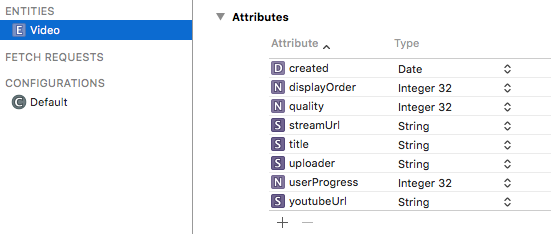
由上圖我們可以知道要存進Core Data的物件有8個特性.
在產生完Core Data來存放影片資訊後,接著就要進入函式”self.startDownload”開始一個新的下載工作:
//MARK: - Downloading methods

/**
 Starts download for video, called when track is added

 - parameter video: Video object
 */
func startDownload(video: Video) {
    print("Starting download of video \(video.title) by \(video.uploader)")
    if let urlString = video.streamUrl, url = NSURL(string: urlString), index = self.videoIndexForStreamUrl(urlString) {
        let download = Download(url: urlString)
        download.downloadTask = self.downloadsSession.downloadTaskWithURL(url)
        download.downloadTask?.resume()
        download.isDownloading = true
        self.activeDownloads[download.url] = download

        self.tableView.reloadRowsAtIndexPaths([NSIndexPath(forRow: index, inSection: 0)], withRowAnimation: .None)
    }
}
這段重點在於如何產生一個新的NSURLSessionDownloadTask,並啟動下載程序,並且在過程中要持續更新UI讓使用者清楚的知道現在的進度是多少,在下載完成後將暫存的檔案移至指定的位置並同時更改檔名.
一個新的NSURLSessionDownloadTask是透過以下這行程式初始化的:
download.downloadTask = self.downloadsSession.downloadTaskWithURL(url)
在往前追朔self.downloadsSession的資料結構與初始化的方式:
lazy var downloadsSession: NSURLSession = {
    let configuration = NSURLSessionConfiguration.backgroundSessionConfigurationWithIdentifier("bgSessionConfiguration")
    let session = NSURLSession(configuration: configuration, delegate: self, delegateQueue: nil)
    return session
}()
從上述的設定中可以看到downloadsSession是可以在背景執行下載,並且透過delegate(NSURLSessionDelegate)接收回呼函式,這裡實現的回乎函式有:
1.func URLSession(session: NSURLSession, downloadTask: NSURLSessionDownloadTask, didFinishDownloadingToURL location: NSURL)
2.func URLSession(session: NSURLSession, downloadTask: NSURLSessionDownloadTask, didWriteData bytesWritten: Int64, totalBytesWritten: Int64, totalBytesExpectedToWrite: Int64)
其中的第一個函式在下載結束後會被呼叫,因為下載完的檔案會被暫存在系統中,所以要將這個暫存檔移到指定路徑做永久保存,這段程式如下:
//Download finished
func URLSession(session: NSURLSession, downloadTask: NSURLSessionDownloadTask, didFinishDownloadingToURL location: NSURL) {
    if let originalURL = downloadTask.originalRequest?.URL?.absoluteString {
        if let destinationURL = self.localFilePathForUrl(originalURL) {

            print("Destination URL: \(destinationURL)")
            let fileManager = NSFileManager.defaultManager()
            //Removing the file at the path, just in case one exists
            do {
                try fileManager.removeItemAtURL(destinationURL)
            } catch {
                print("No file to remove. Proceeding...")
            }

            //Moving the downloaded file to the new location
            do {
                try fileManager.copyItemAtURL(location, toURL: destinationURL)
            } catch let error as NSError {
                print("Could not copy file: \(error.localizedDescription)")
            }

            //Updating the cell
            if let url = downloadTask.originalRequest?.URL?.absoluteString {
                self.activeDownloads[url] = nil

                if let videoIndex = self.videoIndexForDownloadTask(downloadTask) {
                    dispatch_async(dispatch_get_main_queue(), {
                        self.tableView.reloadRowsAtIndexPaths([NSIndexPath(forRow: videoIndex, inSection: 0)], withRowAnimation: .None)
                    })
                }
            }
        }
    }
}
新的路徑與檔名是透過函式”self.localFilePathForUrl()”來處理,處理的方法是透過連結中取出VideoID作為檔名,而副檔名統一為.mp4格式,因為只下載mp4格式的檔案.
第二個Delegate函式則是在下載時持續更新UI讓使用者了解目前的下載進度,這段的程式碼如下:
//Updating download status
func URLSession(session: NSURLSession, downloadTask: NSURLSessionDownloadTask, didWriteData bytesWritten: Int64, totalBytesWritten: Int64, totalBytesExpectedToWrite: Int64) {

    if let downloadUrl = downloadTask.originalRequest?.URL?.absoluteString, download = self.activeDownloads[downloadUrl] {
        download.progress = Float(totalBytesWritten)/Float(totalBytesExpectedToWrite)
        let totalSize = NSByteCountFormatter.stringFromByteCount(totalBytesExpectedToWrite, countStyle: NSByteCountFormatterCountStyle.Binary)
        if let trackIndex = self.videoIndexForDownloadTask(downloadTask), let VideoTableViewCell = tableView.cellForRowAtIndexPath(NSIndexPath(forRow: trackIndex, inSection: 0)) as? VideoTableViewCell {
            dispatch_async(dispatch_get_main_queue(), {

                let done = (download.progress == 1)

                VideoTableViewCell.progressView.hidden = done
                VideoTableViewCell.progressLabel.hidden = done
                VideoTableViewCell.progressView.progress = download.progress
                VideoTableViewCell.progressLabel.text =  String(format: "%.1f%% of %@",  download.progress * 100, totalSize)
            })
        }
    }
}
一篇關於NSURLSessionDownloadTask的文章 link
播放影片
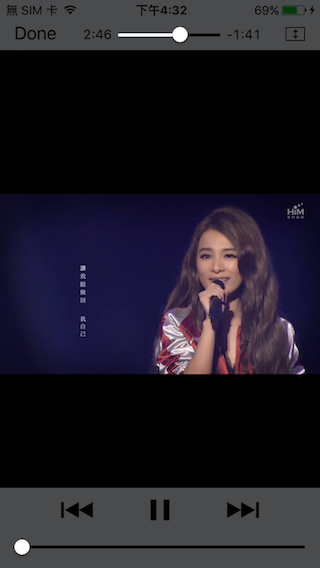
當檔案下載完畢後點擊曲目就會開始播放,由於曲目是透過TableView呈現,所以點擊後會觸發TableView的”didSelectRowAtIndexPath”,這部分的程式碼如下:
override func tableView(tableView: UITableView, didSelectRowAtIndexPath indexPath: NSIndexPath) {
    let video = CoreDataController.sharedController.fetchedResultsController.objectAtIndexPath(indexPath) as! Video
    if self.localFileExistsFor(video) {
        self.playDownload(video, atIndexPath: indexPath)
    }
    tableView.deselectRowAtIndexPath(indexPath, animated: true)
}
首先判斷要播放的檔案是否存在,由於檔案的資訊是存在Core Data而影音檔案是存在App的資料夾,所以成功從Core Data取出檔案資訊,不代表檔案一定存在!
若要播放已下載的檔案則進入函式”self.playDownload(video, atIndexPath: indexPath)”這部分的程式碼如下:
/**
 Plays video in fullscreen player

 - parameter video:     video that is going to be played
 - parameter indexPath: index path of the video
 */
func playDownload(video: Video, atIndexPath indexPath: NSIndexPath) {


    if let urlString = video.streamUrl, url = self.localFilePathForUrl(urlString) {

          //路徑是指到一個.mp4的本地端檔案
          //以我自己執行的時候路徑是:
          //file:///var/mobile/Containers/Data/Application/FA30A6EC-AE24-4783-8DC6-4DE254133585/Documents/o-AOzX-MYrc2CU8zM.mp4
        let player = AVPlayer(URL: url)

        //Seek to time if the time is saved
        if let time = video.userProgress as? Double {
            player.seekToTime(CMTime(seconds: time, preferredTimescale: 1))
        }

        let playerViewController = AVPlayerViewController()
        video.userProgress = 0
        player.addPeriodicTimeObserverForInterval(CMTime(seconds: 10, preferredTimescale: 1), queue: dispatch_get_main_queue()) { [weak self] time in

            //Every 5 seconds, update the progress of the video in core data
            let intTime = Int(CMTimeGetSeconds(time))
            let totalVideoTime = CMTimeGetSeconds(player.currentItem!.duration)
            let progressPercent = Double(intTime) / totalVideoTime

            print("User progress on video in seconds: \(intTime)")

            //If user is 95% done with the video, mark it as done
            if progressPercent > 0.95 {
                video.userProgress = nil
            } else {
                video.userProgress = intTime
            }

            CoreDataController.sharedController.saveContext()
            self?.tableView.reloadRowsAtIndexPaths([indexPath], withRowAnimation: .None)

        }
        playerViewController.player = player
        self.presentViewController(playerViewController, animated: true) {
            playerViewController.player!.play()
        }
    }
}
本專案播放是透過AVFoundation中的AVPlayer與AVPlayerViewController分別作為影音播放的控制與顯示,重點在以下這幾行程式:
1.宣告一個AVPlayer物件,並指定要播放的本地端檔案路徑給這個AVPlayer
let player = AVPlayer(URL: url)
2.宣告一個timer定時依播放進度更新UI與儲存播放資訊
player.addPeriodicTimeObserverForInterval(CMTime(seconds: 10, preferredTimescale: 1), queue: dispatch_get_main_queue()) { [weak self] time in
3.宣告一個playerViewController並將以初始化的player(AVPlayer)指定給playerViewController
playerViewController.player = player
4.顯示畫面並開始播放
self.presentViewController(playerViewController, animated: true) {
            playerViewController.player!.play()
}
note: 一篇關於AVPlayer的文章 link
心得
這個專案的重點在於下載,儲存與播放,除了XCDYouTubeKit之外,核心的部分都是使用iOS提供的框架所完成的,所以有一定經驗的開發者應該能夠輕鬆地掌握這個專案.
在分析專案的過程中發現兩個可以改進的問題或項目:
1.當檔案正在下載中或者是暫停下載的情況下關掉App,重新開啟之後會發現剛剛正在下載的檔案已經不再下載,點及該檔案也無法播放.
2.有其他使用者在這個專案的Github中開了一個Issue希望能夠把已下載的檔案移到系統相簿中(Camera Roll)
參考資料
DownTube專案原始碼 link
一篇關於NSURLSession的文章 link
一篇關於拆解YouTube URL的文章 link
iTag列表 link
XCDYouTubeKit是支援iOS,tvOS與OS X的開源專案 link
一篇關於AVPlayer的文章 link
本文目錄 -
簡介
資料夾結構
Root ViewControl : HTYMenuVC
HTY360PlayerVC
心得
Reference
簡介
HTY360Player是一個播放360度影片的iOS App,播放影片時可以藉由移動手機而轉換視角,允許的來源有三個:
1.App內建的展示影片
2.線上連結
3.手機相簿內的影片
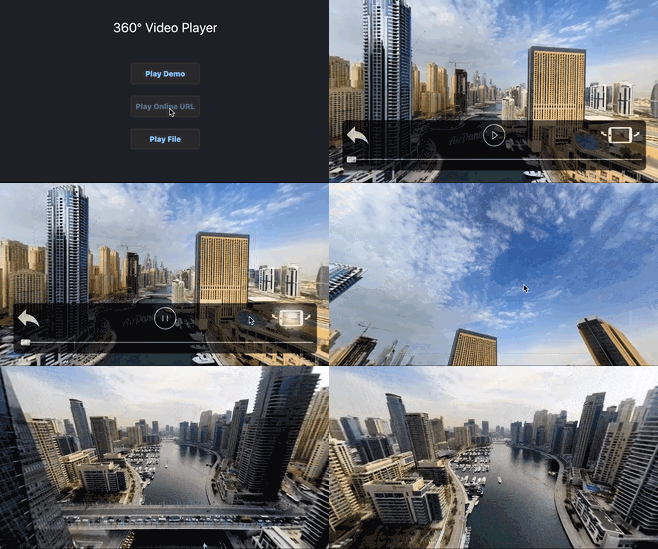
這次解析的重點有兩個部分,一個是播放器的解碼(AVFoundation)與UI操作,第二部分是使用OpenGL渲染影像,我們將從資料結構與執行流程來解析這個專案.
專案原始碼連結: Github Link
資料夾結構
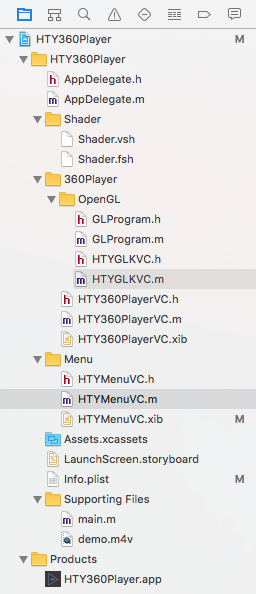
- 主資料夾(HTY360Player) - 除了基本的檔案(main/AppDelegate)之外還有一個展示影片檔案demo.m4v
- Shader - OpenGL在渲染影像時所需要的檔案
- 360Player -
- OpenGL - OpenGL實作的程式碼
- HTY360PlayerVC - 播放影像的頁面,影像解碼的實作也在這邊完成
- Menu
- App的根頁面(RootViewControl),主要功能在於選擇影像來源.
ROOT ViewControl
接著就順著App的執行流程來解析這次的專案,觀察AppDelegate.m中可以得知,RootVC是HTYMenuVC,所以開啟App後可以看到在HTYMenuVC的畫面是三個按鈕,分別是選擇不同的檔案來源:1.內建demo影片 2.開啟線上連結 3.選擇手機上現有的檔案:
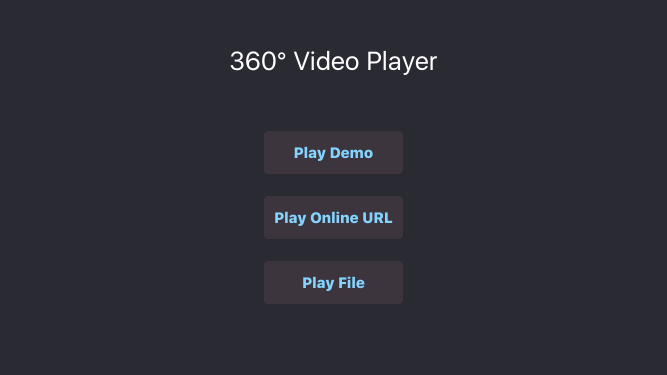
在HTYMenuVC.m中可以發現,無論是選擇哪一個點案來源到最後都會呼叫 “[[HTY360PlayerVC alloc] initWithNibName:@”HTY360PlayerVC” bundle:nil url:url]” 其中的url就是檔案的路徑來源,包含本地端與遠端的路徑都支持,在遠端檔案的部分,預設是指向”d8d913s460fub.cloudfront.net/krpanocloud…“.
HTY360PlayerVC
在HTYMenuVC選擇完影像的檔案來源後會開啟第二個頁面”HTY360PlayerVC”,一樣順著ViewController的生命週期開始觀察,在這個VeiwController初始化可分為兩個階段:
- initWithNibName:bundle:url:
url:這是一個客製化的初始化方法,除了產生HTY360PlayerVC的instance之外,只做一件事情就是設定成員變數”videoURL” ViewDidLoad
這邊是初始化的第二個部分也是最後一個步驟,設定了很多東西,包括App的事件通知(app進入背景與再次回到app),影像解碼器的設定,opengl初始化以及ui元件的設置.a.註冊系統事件通知 b.設定影音解碼器:[self setupVideoPlaybackForURL:_videoURL] c.設定OpenGL:[self configureGLKView]; d.設定UI元件:[self configurePlayButton]; e.設定UI元件:[self configureProgressSlider]; f.設定UI元件:[self configureControleBackgroundView]; g.設定UI元件:[self configureBackButton]; h.設定UI元件:[self configureGyroButton];
我們會把重點擺在前三個a,b,c, configurePlayButton之後的不看,是因為這些都是設置UI元件,我們還是把重點放在與影音播放的部分為主.
a.註冊系統事件通知
在HTY360PlayerVC的ViewDidLoad函式中我們可以看到一開始作者註冊了兩個事件通知
1.UIApplicationWillResignActiveNotification
2.UIApplicationDidBecomeActiveNotification
這兩個事件分別是App即將停止運作,可能是使用者按了HOME鍵,切換到其他App或進入待機模式…etc,此時App就會暫停播放.第二個事件是當使用者再次回到App,此時播放的進度條(Slider)會回到上次離開App的那個時間,並保持暫停等待使用者按下播放鍵開始播放.
通常影音串流的App在使用者暫時離開時暫停是必要的,這有很多原因有技術考量也有商業考量,就技術層面來看,進入背景後OS會暫停你的應用程式,除非你向OS請求要背景播放,不然被OS停止之後再回來App通常會造成非預期的崩潰,暫停播放也可以節省電池用電,如果是線上串流可以節省頻寬進一步節省成本…etc
note: 一篇關於iOS App生命週期的文章 link
b.設定影音解碼器:[self setupVideoPlaybackForURL:_videoURL]
在這個階段作者設定了以下幾個變數分別是:
1.self.videoOutput(AVPlayerItemVideoOutput) : 儲存影像解碼後的資料,採用YCbCr格式.
2.self.player(AVPlayer) : 控制播放器的暫停,控制...等等.
3.AVAudioSession : 設定聲音輸出.
4.AVURLAsset *asset : 主要處理播放來源路徑與偵測是否為有效檔案.
self.videoOutput(AVPlayerItemVideoOutput)
self.videoOutput(AVPlayerItemVideoOutput)存放了解碼後的影像,資料格式是YCbCr420,這個格式通常是H264解碼器的原生輸出,也是OpenGL支援的影像資料來源,通常在iOS在實作串流應用時渲染的部分通常有兩種選擇OpenGL+YCbCr或者是UIImage+RGB,前者有比較好的效能表現,因為解碼與渲染分別是透過CPU與GPU,後者都是CPU負責,但要使用OpenGL渲染初期學習的門檻稍高.
self.player(AVPlayer)
AVPlayer是播放器的核心物件,提供了play,pause,seek…等等的控制項,以及目前播放位置,播放速度(rate),音量…等等資訊,接下來將會介紹self.player與其他函式的關係並推敲作者意圖.
note: 一篇關於AVPlayer的文章 link
播放:
    以下是播放按鈕的對應函式
    - (IBAction)playButtonTouched:(id)sender {
        [NSObject cancelPreviousPerformRequestsWithTarget:self];
        if ([self isPlaying]) {
            [self pause];
        } else {
            [self play];
        }
    }

       當按下之後會先呼叫"cancelPreviousPerformRequestsWithTarget",
    取消先前註冊的@selector,而整個檔案裡面只有一個地方用到,就是延遲三秒隱藏選單的功能
    "[self performSelector:@selector(hideControlsSlowly) withObject:nil afterDelay:HIDE_CONTROL_DELAY];"
        接著是判斷player是不是在播放的狀態,進一步去看[self isPlaying]的實作,
    發現只有一行程式:return self.mRestoreAfterScrubbingRate != 0.f || [self.player rate] != 0.f;
        這邊要先解釋一下,作者在滑動時間軸的時候會先暫停影像播放,實作的方法是把目前播放器的速度
    (self.player.rate)存儲到self.mRestoreAfterScrubbingRate,
    然後再把self.player.rate設定為零,所以在判斷是不是播放時才會判斷這兩個成員變數,
        若目前不是在播放狀態則會進入[self play],進一步觀察實作方式,
    一開始會再次判斷現在是否在播放中,接著避免在播放前時間軸被拉到影片結尾的地方直接暫停,
    所以當這個情況發生時就從頭開始播放,最後才呼叫[self.player play],並更新UI狀態.

    - (void)play {
        if ([self isPlaying])
            return;
        /* If we are at the end of the movie, we must seek to the beginning first
         before starting playback. */
        if (YES == self.seekToZeroBeforePlay) {
            self.seekToZeroBeforePlay = NO;
            [self.player seekToTime:kCMTimeZero];
        }

        [self updatePlayButton];
        [self.player play];
        [self scheduleHideControls];
    }
一篇關於cancelPreviousPerformRequestsWithTarget的文章 link
暫停:
        - (void)pause {
        if (![self isPlaying])
            return;

        [self updatePlayButton];
        [self.player pause];

        [self scheduleHideControls];
    }
    暫停的實作相對就簡單很多,先是判斷是否在播放中,若是則呼叫[self.player pause]與更新
    UI元件.
SEEK:
        SEEK是配合UISlider的觸發動作,從開始滑動到結束可以分為三個階段:
    開始滑動,滑動中,跟結束滑動,其中滑動中的觸發可以分為持續或非持續,這邊作者採用的是不持續,
    也就是手離開Slider後才會觸發,所以觸發的時間點跟結束滑動非常接近,
    而本文也將分析這三個實作的內容:

開始滑動:
    - (IBAction)beginScrubbing:(id)sender {
        printf("beginScrubbing\n");
        self.mRestoreAfterScrubbingRate = [self.player rate];
        [self.player setRate:0.f];

        /* Remove previous timer. */
        [self removeTimeObserverForPlayer];
    }

        當開始滑動的事件被觸發後,作者先將目前播放器的速度暫存起來,然後再將速度停整為零,
    達到pause的效果,並將一個每秒觸發約60次的timer暫停,這個timer主要目的是更新slider
    的位置.


滑動中:
    - (IBAction)scrub:(id)sender {
        printf("scrub\n");
        if ([sender isKindOfClass:[UISlider class]]) {
            UISlider* slider = sender;

            CMTime playerDuration = [self playerItemDuration];
            if (CMTIME_IS_INVALID(playerDuration)) {
                return;
            }

            double duration = CMTimeGetSeconds(playerDuration);
            if (isfinite(duration)) {
                float minValue = [slider minimumValue];
                float maxValue = [slider maximumValue];
                float value = [slider value];

                double time = duration * (value - minValue) / (maxValue - minValue);

                [self.player seekToTime:CMTimeMakeWithSeconds(time, NSEC_PER_SEC)];
            }
        }
    }

        當使用者滑到了要播放的時間點,透過簡單計算相段時間,然後設定self.player seek到指定
    的時間,要注意的是在這個階段self.player的播放速度仍然是零,還是停留在PAUSE的狀態.


結束滑動:
    - (IBAction)endScrubbing:(id)sender {
        printf("endScrubbing\n");
        if (!self.timeObserver) {
            CMTime playerDuration = [self playerItemDuration];
            if (CMTIME_IS_INVALID(playerDuration)) {
                return;
            }

            double duration = CMTimeGetSeconds(playerDuration);
            if (isfinite(duration)) {
                CGFloat width = CGRectGetWidth([self.progressSlider bounds]);
                double tolerance = 0.5f * duration / width;

                __weak HTY360PlayerVC* weakSelf = self;
                self.timeObserver = [self.player addPeriodicTimeObserverForInterval:CMTimeMakeWithSeconds(tolerance, NSEC_PER_SEC)
                                                                              queue:NULL
                                                                         usingBlock:^(CMTime time) {
                                                                             [weakSelf syncScrubber];
                                                                         }];
            }
        }

        if (self.mRestoreAfterScrubbingRate) {
            [self.player setRate:self.mRestoreAfterScrubbingRate];
            self.mRestoreAfterScrubbingRate = 0.f;
        }
    }

    最後滑動的事件即將結束時,重新啟動更新UI的timer,並把播放速度還原到seek之前的數值.
AVAudioSession : 設定聲音輸出
設定聲音輸出模式為強制輸出,不受靜音鍵影響以及在背景時可持續發出聲音,但因為進入背景後就暫停播放了,所以作者會做這個設定推估是強制發出聲音為主要考量.
note: AVAudioSessionCategoryPlayback link
AVURLAsset *asset
AVURLAssert主要功能有兩個:一個是提供播放來源,第二個則是提供播放來源的資訊,這個資訊包含了是否可播放,有哪些可播放資訊(影像,聲音,字幕…etc),以下將一一介紹在程式中如何實現:
在這個應用中,播放來源是在初始化時提供url參數:
AVURLAsset *asset = [AVURLAsset URLAssetWithURL:url options:nil];
而載入資訊則是先宣告一個陣列,陣列裡面放入要偵測的鍵值,在這支程式中是”playable”與”tracks”,
然後再透過AVURLAsset提供的方法”loadValuesAsynchronouslyForKeys”從播放來源中載入指定的資訊(“playable”與”tracks”),最後透過AVURLAssert提供的方法”statusOfValueForKey”,來判斷載入是否成功,這部分的程式碼如下所列:
AVURLAsset *asset = [AVURLAsset URLAssetWithURL:url options:nil];

NSArray *requestedKeys = [NSArray arrayWithObjects:kTracksKey, kPlayableKey, nil];

[asset loadValuesAsynchronouslyForKeys:requestedKeys completionHandler:^{

dispatch_async( dispatch_get_main_queue(),^{

   /* Make sure that the value of each key has loaded successfully. */
   for (NSString *thisKey in requestedKeys) {
       NSError *error = nil;
       AVKeyValueStatus keyStatus = [asset statusOfValueForKey:thisKey error:&error];
       NSLog(@"key:%@ and result:%ld",thisKey,(long)keyStatus);
       if (keyStatus == AVKeyValueStatusFailed) {
           [self assetFailedToPrepareForPlayback:error];
           return;
       }
   }
                       ....
在上面的程式中一個FOR迴圈(for (NSString *thisKey in requestedKeys)),會先判斷所有載入的結果是否出錯(keyStatus == AVKeyValueStatusFailed),如果出錯了代表是一個不合法的播放來源或是不支援指定的鍵值,此時會顯示錯誤訊息並卸載相關變數([self assetFailedToPrepareForPlayback:error]).
確定了所有的參數都正確載入後,接著就是要將播放來源提供給self.player,並設定回呼函數(callback),這段程式碼如下所列:
NSError* error = nil;
AVKeyValueStatus status = [asset statusOfValueForKey:kTracksKey error:&error];
if (status == AVKeyValueStatusLoaded) {
    self.playerItem = [AVPlayerItem playerItemWithAsset:asset];
    [self.playerItem addOutput:self.videoOutput];
    [self.player replaceCurrentItemWithPlayerItem:self.playerItem];
    [self.videoOutput requestNotificationOfMediaDataChangeWithAdvanceInterval:ONE_FRAME_DURATION];

   /* When the player item has played to its end time we'll toggle
    the movie controller Pause button to be the Play button */
   [[NSNotificationCenter defaultCenter] addObserver:self
   selector:@selector(playerItemDidReachEnd:)
   name:AVPlayerItemDidPlayToEndTimeNotification object:self.playerItem];
   self.seekToZeroBeforePlay = NO;

   [self.playerItem addObserver:self
                     forKeyPath:kStatusKey
                        options:NSKeyValueObservingOptionInitial | NSKeyValueObservingOptionNew
                        context:AVPlayerDemoPlaybackViewControllerStatusObservationContext];

   [self.player addObserver:self
                 forKeyPath:kCurrentItemKey
                    options:NSKeyValueObservingOptionInitial | NSKeyValueObservingOptionNew
                    context:AVPlayerDemoPlaybackViewControllerCurrentItemObservationContext];

   [self.player addObserver:self
                 forKeyPath:kRateKey
                    options:NSKeyValueObservingOptionInitial | NSKeyValueObservingOptionNew
                    context:AVPlayerDemoPlaybackViewControllerRateObservationContext];


   [self initScrubberTimer];
   [self syncScrubber];
} else {
   NSLog(@"%@ Failed to load the tracks.", self);
}
在這部分的一開始,判斷鍵值”kTracksKey”是否已經載入”if (status == AVKeyValueStatusLoaded)”,若是成功載入則設定播放的物件self.playerItem,並指定給self.player,然後是一系列的回呼函數:
self.playerItem 物件:
1.當檔案播放完畢後呼叫函數:- (void)playerItemDidReachEnd:(NSNotification *)notification
設定self.seekToZeroBeforePlay = YES;,這樣當播放結束後再次按播放鍵會因為這個變數為YES而從頭開始播放. ref play()函式 @HTY360PlayerVC.m
2.當成員變數”status”發生數值改變時
相對應的處理函式如下所列:
if (context == AVPlayerDemoPlaybackViewControllerStatusObservationContext) {
    [self updatePlayButton];

    AVPlayerStatus status = [[change objectForKey:NSKeyValueChangeNewKey] integerValue];
    switch (status) {
            /* Indicates that the status of the player is not yet known because
             it has not tried to load new media resources for playback */
        case AVPlayerStatusUnknown: {
            [self removePlayerTimeObserver];
            [self syncScrubber];
            [self disableScrubber];
            [self disablePlayerButtons];
            break;
        }
        case AVPlayerStatusReadyToPlay: {
            /* Once the AVPlayerItem becomes ready to play, i.e.
             [playerItem status] == AVPlayerItemStatusReadyToPlay,
             its duration can be fetched from the item. */
            [self initScrubberTimer];
            [self enableScrubber];
            [self enablePlayerButtons];
            break;
        }
        case AVPlayerStatusFailed: {
            AVPlayerItem *playerItem = (AVPlayerItem *)object;
            [self assetFailedToPrepareForPlayback:playerItem.error];
            NSLog(@"Error fail : %@", playerItem.error);
            break;
        }
    }
}
這邊根據不同的狀態分別設定slider與play播放鍵.
self.player 物件:
1.成員變數”currentItem”發生數值改變時
} else if (context == AVPlayerDemoPlaybackViewControllerCurrentItemObservationContext) {
    /* AVPlayer "currentItem" property observer.
     Called when the AVPlayer replaceCurrentItemWithPlayerItem:
     replacement will/did occur. */

    //NSLog(@"AVPlayerDemoPlaybackViewControllerCurrentItemObservationContext");
}
這邊目前沒有做任何的事情,推測應該是預留或除錯用
2.成員變數”rate”發生數值改變時
} else if (context == AVPlayerDemoPlaybackViewControllerRateObservationContext) {
    [self updatePlayButton];
    // NSLog(@"AVPlayerDemoPlaybackViewControllerRateObservationContext");
}
在這個應用程式self.player.rate,只會有兩個值:0.0或1.0,分別代表著暫停跟播放,所以隨著數值的改變,UI按鈕也跟著改變,而改變的時機跟觸法點就從這邊開始.
這邊比較需要注意的是,官方文件說要預載入的鍵值(“loadValuesAsynchronouslyForKeys”中的keys)解釋如下:
An array of strings containing the required keys.
The keys are the property names of a class that adopts the protocol.
所以這些宣告成NSString的鍵值都是AVURLAsset的成員變數.
note: 一篇關於AVAsset的文章 link
note: APPLE官方文件,關於”loadValuesAsynchronouslyForKeys”的說明 link
心得
統一風格的命名方式:在HTY360PlayerVC初始化的過程中,可以看到在設定UI元件的時候有統一的命名方式,例如:
[self setupVideoPlaybackForURL:_videoURL];
[self configureGLKView];
[self configurePlayButton];
[self configureProgressSlider];
[self configureControleBackgroundView];
[self configureBackButton];
[self configureGyroButton];
這樣在第一次看到程式碼時可以很快地就先跳過configurePlayButton以下的函示呼叫,因為從名稱就可以知道這些是必要但不是那麼重要的部分另外一方面也可以再次證明說有時候不一定要在遵循特定的coding style,只要在同一個專案內保持相同的風格如此一來也是很夠很清楚地瞭解每一行程式碼的目的與作用,會這樣說是因為某時候每間公司的coding style可能會不盡相同,當有新的成員進來時,是否強制統一風格呢?我是認為大可不必,只要個人保持統一的風格即可,當然也不能太奇怪就是了.
一篇關於Code Review的文章 link
AVFoundation是個功能完成且強大的影音播放函式庫,在處理來源,控制播放與產生輸出都有相對應的物件與方法,只要調用得宜不必處理太多細節就可以駕馭影音播放的功能,但相對來說就會受限於函式庫所支援的播放格式與輸出的資料格式,不過對於一般的應用應該已經夠用了.
第二篇將介紹OpenGL的操作,包括了影像轉換的方法,手勢操作以及手機移動後如何根據偏移量而轉換影像,敬請期待.
Reference
專案原始碼連結: link
一篇關於AVPlayer的文章 link
一篇關於cancelPreviousPerformRequestsWithTarget的文章 link
一篇關於AVAsset的文章 link
APPLE官方文件,關於”loadValuesAsynchronouslyForKeys”的說明 link
APPLE官方的AVFoundation範例程式 官方連結 , 備份連結
一篇關於iOS App生命週期的文章 link
一篇關於Code Review的文章 link
