之前写了关于CoordinatorLayout的使用介绍,现在补充下自定义Behavior的运用,如果对CoordinatorLayout的基本使用不了解可以先看这个:CoordinatorLayout的详细介绍。
先看下Behavior类比较常用的几个方法:
public static abstract class Behavior {
// 略......
/**
* Determine whether the supplied child view has another specific sibling view as a
* layout dependency.
*
* This method will be called at least once in response to a layout request. If it
* returns true for a given child and dependency view pair, the parent CoordinatorLayout
* will:
*
* - Always lay out this child after the dependent child is laid out, regardless
* of child order.
* - Call {@link #onDependentViewChanged} when the dependency view's layout or
* position changes.
*
*
* @param parent the parent view of the given child
* @param child the child view to test
* @param dependency the proposed dependency of child
* @return true if child's layout depends on the proposed dependency's layout,
* false otherwise
*
* @see #onDependentViewChanged(CoordinatorLayout, android.view.View, android.view.View)
*/
public boolean layoutDependsOn(CoordinatorLayout parent, V child, View dependency) {
return false;
}
/**
* Respond to a change in a child's dependent view
*
* This method is called whenever a dependent view changes in size or position outside
* of the standard layout flow. A Behavior may use this method to appropriately update
* the child view in response.
*
* A view's dependency is determined by
* {@link #layoutDependsOn(CoordinatorLayout, android.view.View, android.view.View)} or
* if {@code child} has set another view as it's anchor.
*
* Note that if a Behavior changes the layout of a child via this method, it should
* also be able to reconstruct the correct position in
* {@link #onLayoutChild(CoordinatorLayout, android.view.View, int) onLayoutChild}.
* onDependentViewChanged will not be called during normal layout since
* the layout of each child view will always happen in dependency order.
*
* If the Behavior changes the child view's size or position, it should return true.
* The default implementation returns false.
*
* @param parent the parent view of the given child
* @param child the child view to manipulate
* @param dependency the dependent view that changed
* @return true if the Behavior changed the child view's size or position, false otherwise
*/
public boolean onDependentViewChanged(CoordinatorLayout parent, V child, View dependency) {
return false;
}
/**
* Respond to a child's dependent view being removed.
*
* This method is called after a dependent view has been removed from the parent.
* A Behavior may use this method to appropriately update the child view in response.
*
* A view's dependency is determined by
* {@link #layoutDependsOn(CoordinatorLayout, android.view.View, android.view.View)} or
* if {@code child} has set another view as it's anchor.
*
* @param parent the parent view of the given child
* @param child the child view to manipulate
* @param dependency the dependent view that has been removed
*/
public void onDependentViewRemoved(CoordinatorLayout parent, V child, View dependency) {
}
}1. layoutDependsOn():用来确定关联的视图;
2. onDependentViewChanged():当关联视图发生改变时回调接口;
3. onDependentViewRemoved():关联视图移除时回调接口;
自定义Behavior需要注意的地方:
1. 需要实现构造方法public Behavior(Context context, AttributeSet attrs),不然布局中无法使用;
2. 关联的视图除了layoutDependsOn()指定的视图外还包括layout_anchor属性指定的视图,可在onDependentViewChanged()方法中用instanceof判断;
3. onDependentViewChanged()方法执行需要关联的视图大小或位置改变;
4. 除了和关联视图做交互动画外,还能通过检测滚动来做交互动画;
一. 检测滚动Behavior
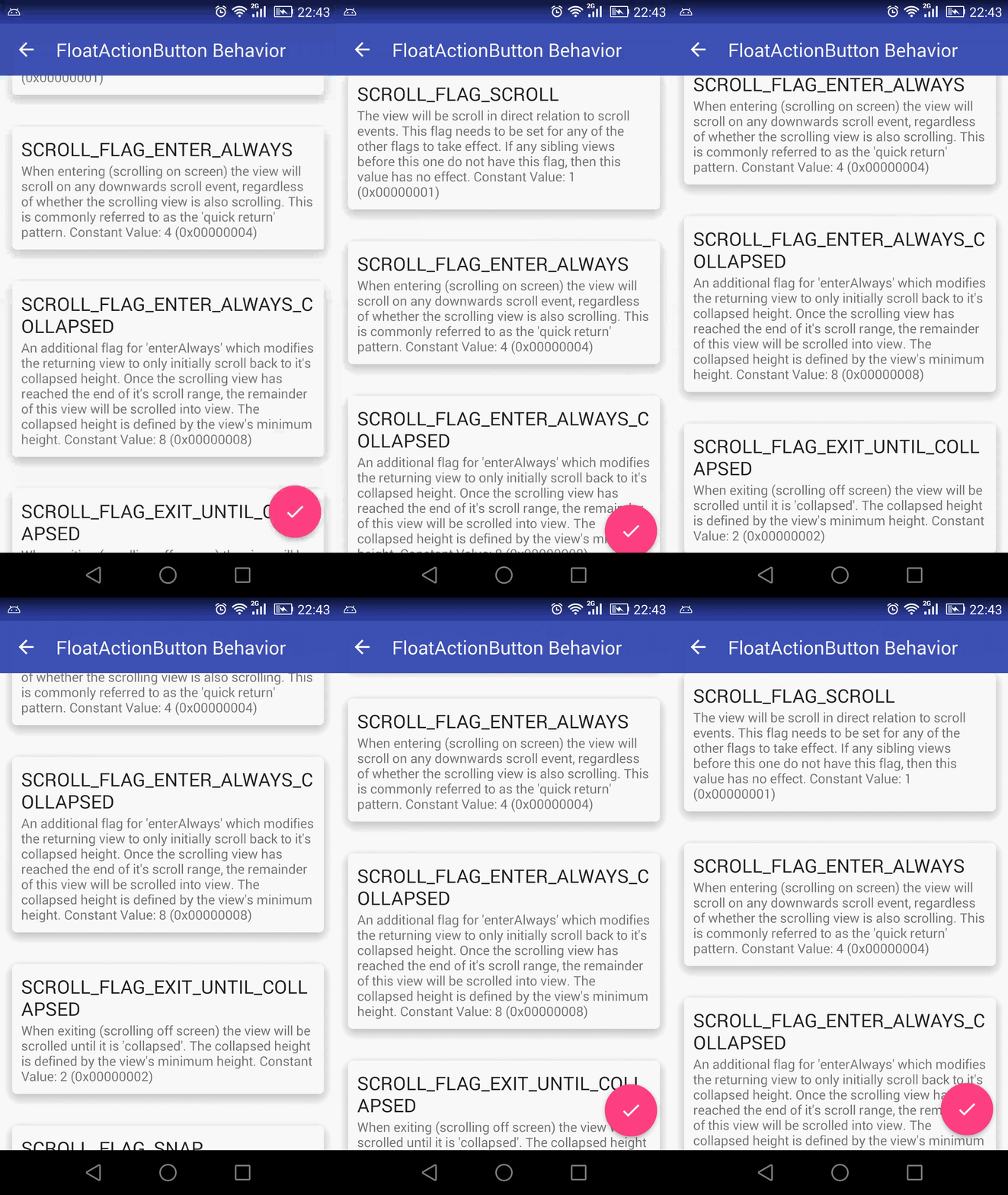
动画实现引用这篇文章的Behavior:FloatingActionButton滚动时的显示与隐藏小结
来看下Behavior的实现:
public class ScrollAwareFABBehavior extends FloatingActionButton.Behavior {

    private boolean mIsAnimatingOut = false;

    public ScrollAwareFABBehavior(Context context, AttributeSet attrs) {
        super();
    }

    @Override
    public boolean onStartNestedScroll(CoordinatorLayout coordinatorLayout,
                                       FloatingActionButton child, View directTargetChild, View target, int nestedScrollAxes) {
        return nestedScrollAxes == ViewCompat.SCROLL_AXIS_VERTICAL ||
                super.onStartNestedScroll(coordinatorLayout, child, directTargetChild, target,
                        nestedScrollAxes);
    }

    @Override
    public void onNestedScroll(CoordinatorLayout coordinatorLayout, FloatingActionButton child,
                               View target, int dxConsumed, int dyConsumed, int dxUnconsumed, int dyUnconsumed) {
        super.onNestedScroll(coordinatorLayout, child, target, dxConsumed, dyConsumed, dxUnconsumed,
                dyUnconsumed);

        if (dyConsumed > 0 && !mIsAnimatingOut && child.getVisibility() == View.VISIBLE) {
//            child.hide();
            animateOut(child);
        } else if (dyConsumed < 0 && child.getVisibility() != View.VISIBLE) {
//            child.show();
            animateIn(child);
        }
    }

    // Same animation that FloatingActionButton.Behavior uses to hide the FAB when the AppBarLayout exits
    private void animateOut(final FloatingActionButton button) {
        if (Build.VERSION.SDK_INT >= 14) {
            ViewCompat.animate(button).translationY(button.getHeight() + getMarginBottom(button))
                    .setInterpolator(new FastOutSlowInInterpolator())
                    .withLayer()
                    .setListener(new ViewPropertyAnimatorListener() {
                        public void onAnimationStart(View view) {
                            mIsAnimatingOut = true;
                        }

                        public void onAnimationCancel(View view) {
                            mIsAnimatingOut = false;
                        }

                        public void onAnimationEnd(View view) {
                            mIsAnimatingOut = false;
                            view.setVisibility(View.GONE);
                        }
                    }).start();
        }
    }

    // Same animation that FloatingActionButton.Behavior uses to show the FAB when the AppBarLayout enters
    private void animateIn(FloatingActionButton button) {
        button.setVisibility(View.VISIBLE);
        if (Build.VERSION.SDK_INT >= 14) {
            ViewCompat.animate(button).translationY(0)
                    .setInterpolator(new FastOutSlowInInterpolator())
                    .withLayer()
                    .setListener(null)
                    .start();
        }
    }

    private int getMarginBottom(View v) {
        int marginBottom = 0;
        final ViewGroup.LayoutParams layoutParams = v.getLayoutParams();
        if (layoutParams instanceof ViewGroup.MarginLayoutParams) {
            marginBottom = ((ViewGroup.MarginLayoutParams) layoutParams).bottomMargin;
        }
        return marginBottom;
    }
}
二. 关联Behavior
使用Depend实现交互动画比检测滚动来得复杂,但它的功能也相对更强大,实现方法也更灵活。
下面来实现头像移动缩小的Behavior,先看下效果图等下比较好描述:

实现的效果就是把指定的头像图片缩小移动并最终固定在左上角,来看下实现代码进行说明吧:
public class AvatarBehavior extends CoordinatorLayout.Behavior {

    // 缩放动画变化的支点
    private static final float ANIM_CHANGE_POINT = 0.2f;

    private Context mContext;
    // 整个滚动的范围
    private int mTotalScrollRange;
    // AppBarLayout高度
    private int mAppBarHeight;
    // AppBarLayout宽度
    private int mAppBarWidth;
    // 控件原始大小
    private int mOriginalSize;
    // 控件最终大小
    private int mFinalSize;
    // 控件最终缩放的尺寸,设置坐标值需要算上该值
    private float mScaleSize;
    // 原始x坐标
    private float mOriginalX;
    // 最终x坐标
    private float mFinalX;
    // 起始y坐标
    private float mOriginalY;
    // 最终y坐标
    private float mFinalY;
    // ToolBar高度
    private int mToolBarHeight;
    // AppBar的起始Y坐标
    private float mAppBarStartY;
    // 滚动执行百分比[0~1]
    private float mPercent;
    // Y轴移动插值器
    private DecelerateInterpolator mMoveYInterpolator;
    // X轴移动插值器
    private AccelerateInterpolator mMoveXInterpolator;
    // 最终变换的视图,因为在5.0以上AppBarLayout在收缩到最终状态会覆盖变换后的视图,所以添加一个最终显示的图片
    private CircleImageView mFinalView;
    // 最终变换的视图离底部的大小
    private int mFinalViewMarginBottom;


    public AvatarBehavior(Context context, AttributeSet attrs) {
        super(context, attrs);
        mContext = context;
        mMoveYInterpolator = new DecelerateInterpolator();
        mMoveXInterpolator = new AccelerateInterpolator();
        if (attrs != null) {
            TypedArray a = mContext.obtainStyledAttributes(attrs, R.styleable.AvatarImageBehavior);
            mFinalSize = (int) a.getDimension(R.styleable.AvatarImageBehavior_finalSize, 0);
            mFinalX = a.getDimension(R.styleable.AvatarImageBehavior_finalX, 0);
            mToolBarHeight = (int) a.getDimension(R.styleable.AvatarImageBehavior_toolBarHeight, 0);
            a.recycle();
        }
    }

    @Override
    public boolean layoutDependsOn(CoordinatorLayout parent, CircleImageView child, View dependency) {
        return dependency instanceof AppBarLayout;
    }

    @Override
    public boolean onDependentViewChanged(CoordinatorLayout parent, CircleImageView child, View dependency) {

        if (dependency instanceof AppBarLayout) {
            _initVariables(child, dependency);

            mPercent = (mAppBarStartY - dependency.getY()) * 1.0f / mTotalScrollRange;

            float percentY = mMoveYInterpolator.getInterpolation(mPercent);
            AnimHelper.setViewY(child, mOriginalY, mFinalY - mScaleSize, percentY);

            if (mPercent > ANIM_CHANGE_POINT) {
                float scalePercent = (mPercent - ANIM_CHANGE_POINT) / (1 - ANIM_CHANGE_POINT);
                float percentX = mMoveXInterpolator.getInterpolation(scalePercent);
                AnimHelper.scaleView(child, mOriginalSize, mFinalSize, scalePercent);
                AnimHelper.setViewX(child, mOriginalX, mFinalX - mScaleSize, percentX);
            } else {
                AnimHelper.scaleView(child, mOriginalSize, mFinalSize, 0);
                AnimHelper.setViewX(child, mOriginalX, mFinalX - mScaleSize, 0);
            }
            if (mFinalView != null) {
                if (percentY == 1.0f) {
                    // 滚动到顶时才显示
                    mFinalView.setVisibility(View.VISIBLE);
                } else {
                    mFinalView.setVisibility(View.GONE);
                }
            }
        } else if (Build.VERSION.SDK_INT >= Build.VERSION_CODES.LOLLIPOP && dependency instanceof CollapsingToolbarLayout) {
            // 大于5.0才生成新的最终的头像,因为5.0以上AppBarLayout会覆盖变换后的头像
            if (mFinalView == null && mFinalSize != 0 && mFinalX != 0 && mFinalViewMarginBottom != 0) {
                mFinalView = new CircleImageView(mContext);
                mFinalView.setVisibility(View.GONE);
                // 添加为CollapsingToolbarLayout子视图
                ((CollapsingToolbarLayout) dependency).addView(mFinalView);
                FrameLayout.LayoutParams params = (FrameLayout.LayoutParams) mFinalView.getLayoutParams();
                // 设置大小
                params.width = mFinalSize;
                params.height = mFinalSize;
                // 设置位置,最后显示时相当于变换后的头像位置
                params.gravity = Gravity.BOTTOM;
                params.leftMargin = (int) mFinalX;
                params.bottomMargin = mFinalViewMarginBottom;
                mFinalView.setLayoutParams(params);
                mFinalView.setImageDrawable(child.getDrawable());
                mFinalView.setBorderColor(child.getBorderColor());
                int borderWidth = (int) ((mFinalSize * 1.0f / mOriginalSize) * child.getBorderWidth());
                mFinalView.setBorderWidth(borderWidth);
            }
        }

        return true;
    }

    /**
     * 初始化变量
     * @param child
     * @param dependency
     */
    private void _initVariables(CircleImageView child, View dependency) {
        if (mAppBarHeight == 0) {
            mAppBarHeight = dependency.getHeight();
            mAppBarStartY = dependency.getY();
        }
        if (mTotalScrollRange == 0) {
            mTotalScrollRange = ((AppBarLayout) dependency).getTotalScrollRange();
        }
        if (mOriginalSize == 0) {
            mOriginalSize = child.getWidth();
        }
        if (mFinalSize == 0) {
            mFinalSize = mContext.getResources().getDimensionPixelSize(R.dimen.avatar_final_size);
        }
        if (mAppBarWidth == 0) {
            mAppBarWidth = dependency.getWidth();
        }
        if (mOriginalX == 0) {
            mOriginalX = child.getX();
        }
        if (mFinalX == 0) {
            mFinalX = mContext.getResources().getDimensionPixelSize(R.dimen.avatar_final_x);
        }
        if (mOriginalY == 0) {
            mOriginalY = child.getY();
        }
        if (mFinalY == 0) {
            if (mToolBarHeight == 0) {
                mToolBarHeight = mContext.getResources().getDimensionPixelSize(R.dimen.toolbar_height);
            }
            mFinalY = (mToolBarHeight - mFinalSize) / 2 + mAppBarStartY;
        }
        if (mScaleSize == 0) {
            mScaleSize = (mOriginalSize - mFinalSize) * 1.0f / 2;
        }
        if (mFinalViewMarginBottom == 0) {
            mFinalViewMarginBottom = (mToolBarHeight - mFinalSize) / 2;
        }
    }
}1. 所有的动画控制都是在if (dependency instanceof AppBarLayout) 这个条件分支里实现,并且AppBarLayout是layoutDependsOn()所指定依赖的对象;
2. Y方向上做减速移动DecelerateInterpolator;
3. 设置了个动画分界点ANIM_CHANGE_POINT(0.2f),在这里开始做X方向移动和缩小动画,X方向做加速移动AccelerateInterpolator;
4. 在if(Build.VERSION.SDK_INT >= Build.VERSION_CODES.LOLLIPOP && dependency instanceof CollapsingToolbarLayout)的依赖分支生成了一个小的头像mFinalView,CollapsingToolbarLayout左下角,其实就是头像变换最终所在的位置,这么做的原因是在版本5.0以上变换的头像最后会被AppBarLayout覆盖掉;
在看下布局文件:

自定义Behavior就到这边了,推荐一个相关的开源项目:github.com/saulmm/Coor…,这里实现的效果更好看,但代码逻辑更复杂,而且耦合比较厉害,需要关联好多个地方。