Search is a fundamental mobile activity. Think about it — mobile is much less about creating (unless you are talking about taking pictures or writing an tweet). Instead, mobile devices are used mostly for finding stuff. And an excellent search help users find what they want quickly and easily.
We could all benefit from some best practices around mobile search and I hope this article helps you create a really good user-friendly search for your app.
Search Bar
Our goal for this point — design search bar to be clearly visible and quickly recognizable.
Display Search Bar Prominently
If you have enough space for search bar— use it to display full open-text field, because icon-only search increases the cost of interaction. A downside to having only an icon for search means that the user has to wait for a search box to appear, find where to start typing, and sometimes click one more time to focus on the input field.
Bad: Icon-only search hides context. From a UX point of view, users shouldn’t have to take an action in order to find out what actions they can take.

Good: No need for extra action.
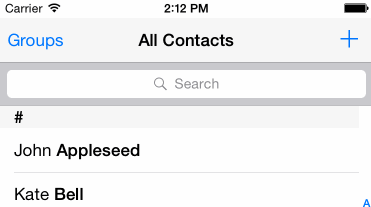
If search is a primary function of your app display it prominently, as it can be the fastest route to discovery for users. E-commerce apps should feature search at the top of their home screen.
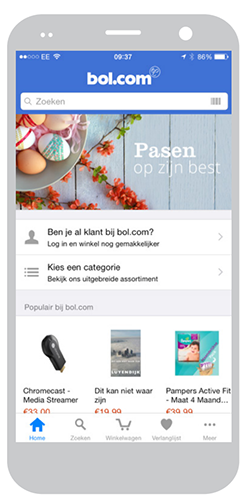
Takeaway: Have an easily identifiable search box in the top of the screen, with an open-text field.
Use Magnifying-Glass Icon
Icons are, by definition, a visual representation of an object, action, or idea. There are a few icons that enjoy mostly universal recognition from users. Magnifying-glass icon is one of such icons.
Always accompany search box with magnifying-glass icon. Users recognize a magnifying-glass icon as meaning ‘search’ even without a textual label. Use a schematic icon, the simplest version of the magnifying glass. Fewer graphic details speed up recognition.

Search Input
Search forces users to work more because not only must they come up with a query, but they also must type it. Typing has high interaction cost; it is error prone and time consuming even with a full keyboard (and even more so on a touch screen).
Our goal for this point — make search easy to use.
Choose Good Defaults
Good default can reduce user effort. Especially when users have to perform repetitive actions, or in situations where they need to use precision, start by offering reasonable defaults that are likely to fit their real-world goals.
Automatically pre-populate data in a booking form (e.g. restaurants, hotels) with suggested data, in many cases will be accurate for the user and make the process more convenient.
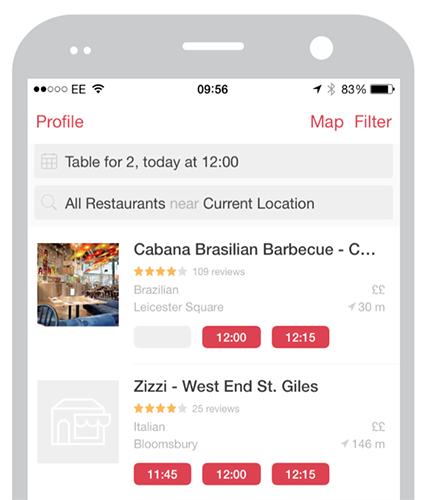
Takeaway: Good defaults and suggested data can help users both reduce mistakes and increase productivity.
Auto-Suggestions
Probably the most useful search pattern that emerged in Web 2.0 is auto-suggestions. They are used to reduce data entry and provide immediate results.
You should provide auto-suggestions as quickly as possible, such as after third character is entered, to provide immediate value and reduce users data entry effort.
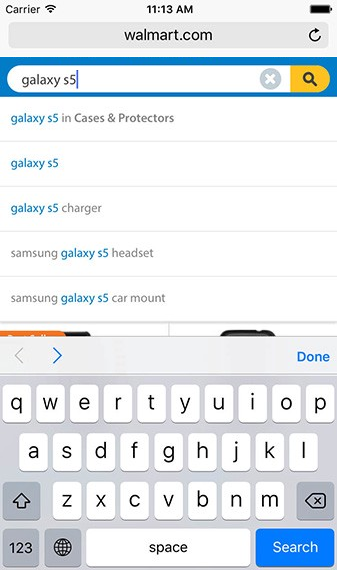
Takeaway: Auto-suggestions are used to reduce data entry and provide immediate results.
Recent and Saved Searches
Even when users are familiar with the search space, search requires them to recall information from their memory. To come up with a meaningful query, a user needs to think about attributes that are relevant for his goal and incorporate them in the query.
Successful mobile interfaces follow a basic usability maxim: respect the users effort. That’s why apps should store all recent searches, in order to provide this data to the user the next time they conduct a search. It benefits the user in saving them time and effort in searching for the same item again.
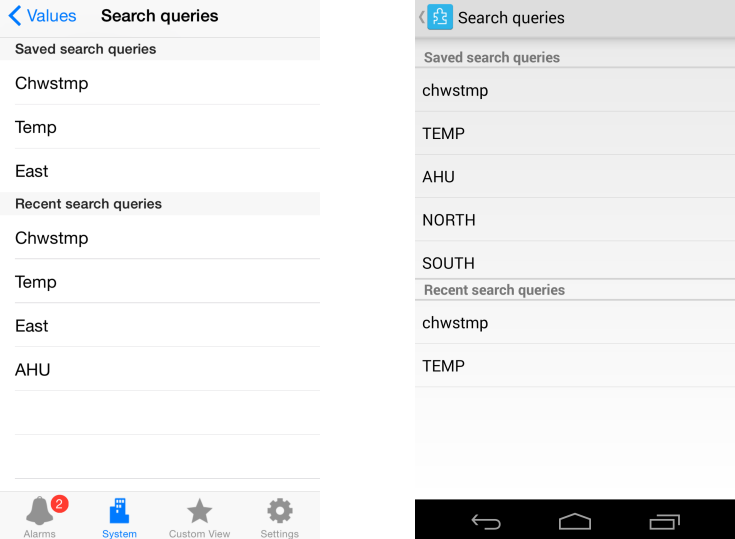
This option works especially good for apps where users often repeat the same searches. This small thing could improve the user experience.
Takeaways:
- Recent user’s searches are saved in app to accelerate users experience.
- Saved searches typically require additional steps to name a search for later use, whereas recent searches are implicitly saved and surfaced. Consider which one will best serve your customers’ needs.
Voice Search
Typing on the phone is hard and error-prone. The idea behind voice search is simple: same query inputted via on-board microphone is used as input for searching instead of a keyword query.

Pretty much any app that has a search box, can also use the voice search pattern. This pattern is especially good for apps that are often used “on the go”. Another important consideration for using voice search pattern are multi-tasking activities such as driving.
But voice search also has a downsides. Voice-based search still strongly dependent on the quality of the voice recognition program. We’ve all heard funny stories of Siri wildly misunderstanding user questions.
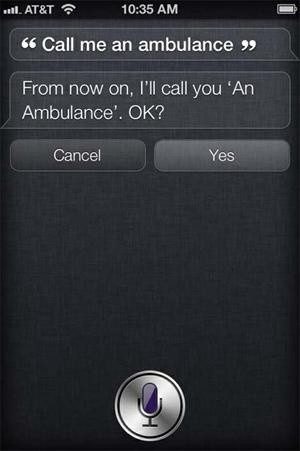
Takeaway: Part of the mobile search is done “on the go” and in context, and voice input is a good addition (sadly, not full alternative) to the traditional text-based approach.
Search Progress
Ideally the results will be displayed immediately, but if it’s not possible — a progress indicator should be used as system feedback for user.
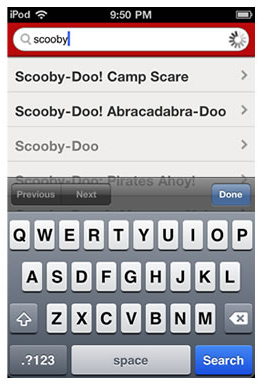
If search takes too long you can use good animation. Animations can distract your visitors and make them ignore long searching times.

Takeaway: Uncertain waits are longer than known, finite waits. You should give your users a clear indication of how long they need to wait.
Search Results
Our goal for this point — apply the principle of least effort. Users beings naturally prefer to use a system which require less effort.
List or Grid
Once a search is performed the results can be displayed in the same screen or on a dedicate results screen. Results may be displayed in a table or list, on a map or satellite, or as thumbnail images.
Important thing to remember — mobile real-estate is limited in the number of search results it can display without the need for scrolling. You should ensure that the first few (3 or 5) search results are highly relevant by default.
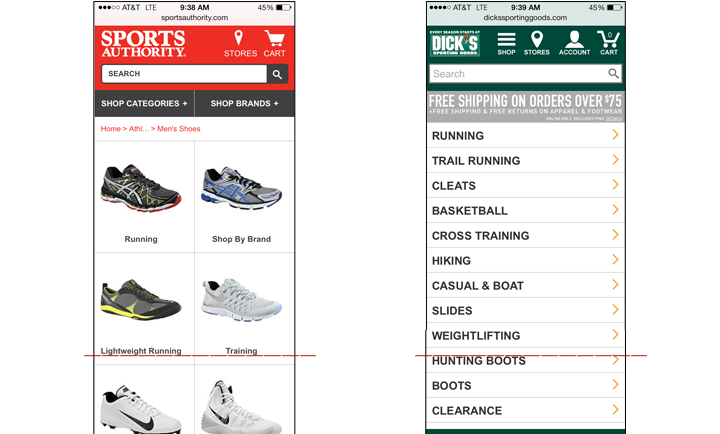
Example below shows the difference for grid vs. list for search results. On the Sports Authority site, the lengthy grid layout meant that users went through about 8 scroll gestures (down and up) before selecting a product type.
Takeaways:
- The first few search results should be highly relevant.
- Users should be able to find the content they want really fast. Choose the appropriate layout based on your product or service.
Lazy Loading
Lazy loading is a common technique to use so that some results will be displayed while the rest are being loaded.
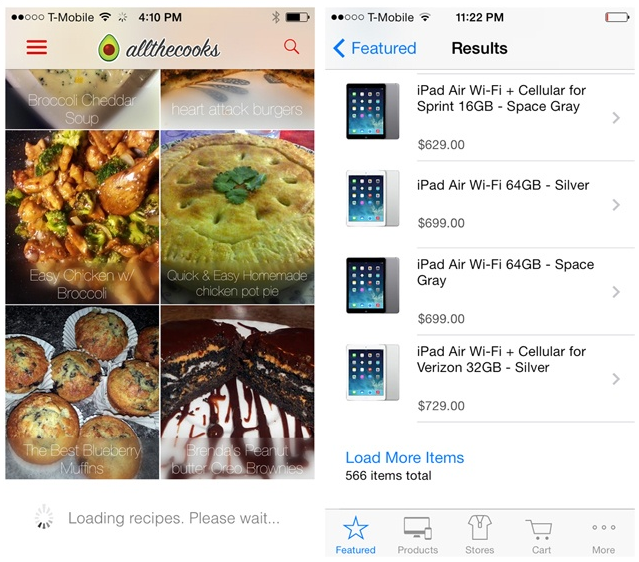
Takeaway: Use lazy loading instead of paging. Avoid paging tables, because they break the natural interaction model for viewing information on a mobile device.
Blank “No results” Page
Avoid giving users dead-ends in their experience when their search produces no matching results. Provide options, e.g. online shop can suggest alternative products from the similar category. To assist the user further you could employ an ‘intelligent search’ feature that covers singular, plurals and misspellings, etc.
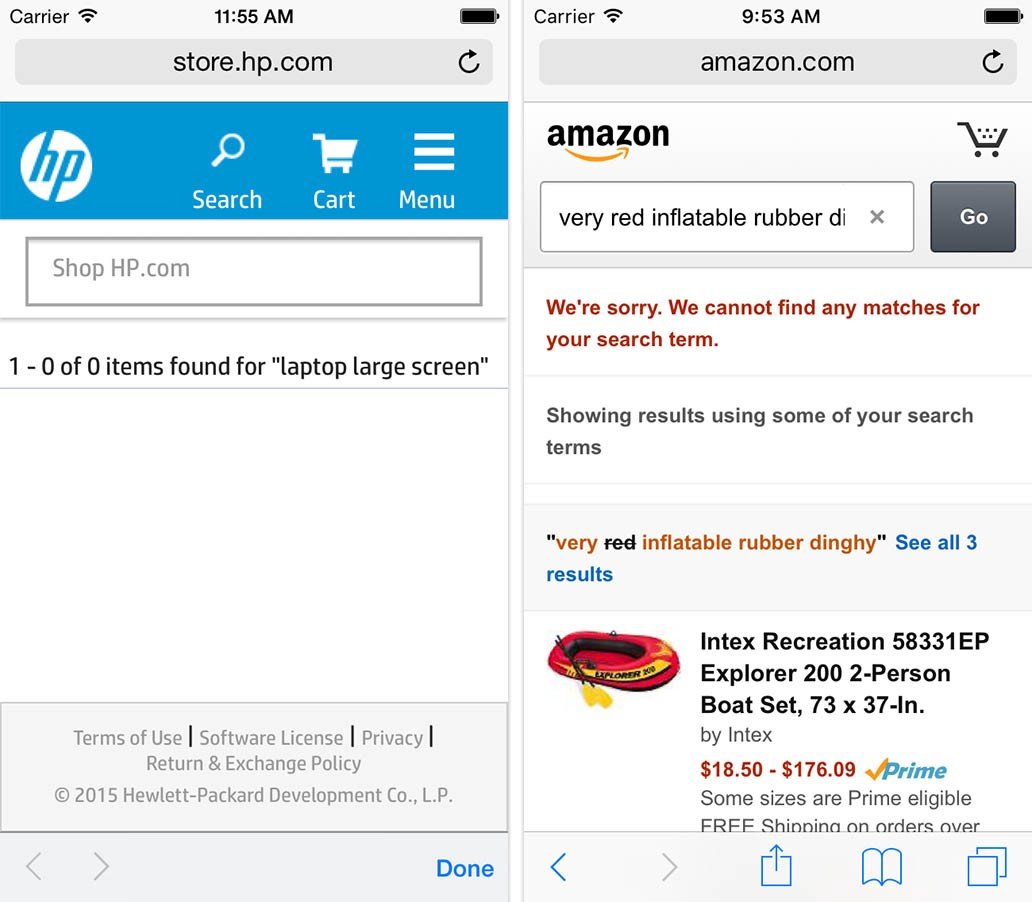
Takeaway: Avoid dead-ends. Provide valuable for user alternatives when there are no matching search results.
Sort and Filter Search Results
During mobile e-commerce usability study Baymard Institute observed that more than 50% of users tried to “search within” their currently navigated category path, in an attempt to “filter the product list on my screen with a search query”. However, 94% of mobile e-commerce sites and apps do not support such behavior.
Provide the user with filtering options that are relevant for their search, and enable them to select multiple options each time they apply to filter results. Do not hide the sort feature within the filtering feature — they are distinct tasks.
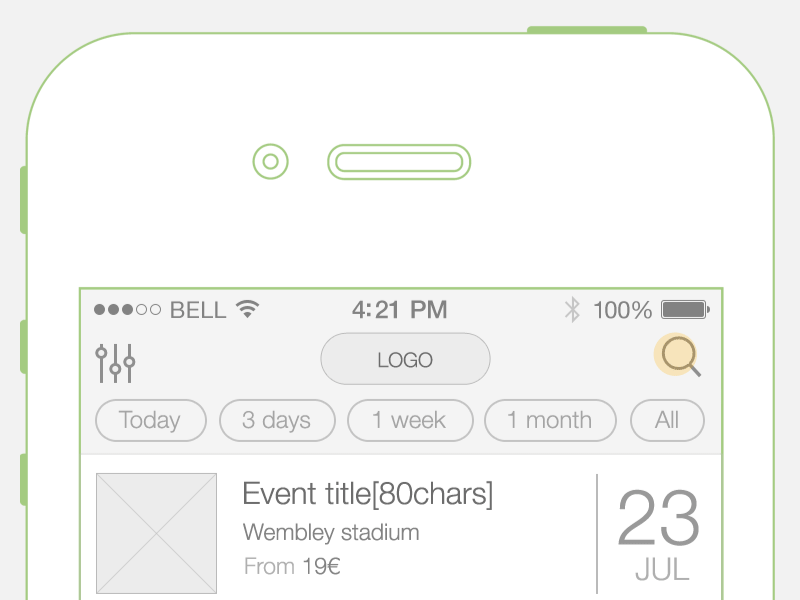
Takeaway: In most cases user should have an option to sort or filter search results.
Search Microinterations
Search is a perfect place for microinteractions and animation. Microinterations is one of the best techniques for giving delightful feedback. Searching microinteractions:
- Communicate feedback or the result of an action.
- Enhance the sense of direct manipulation.
- Help users visualize the results of their actions and prevent errors.
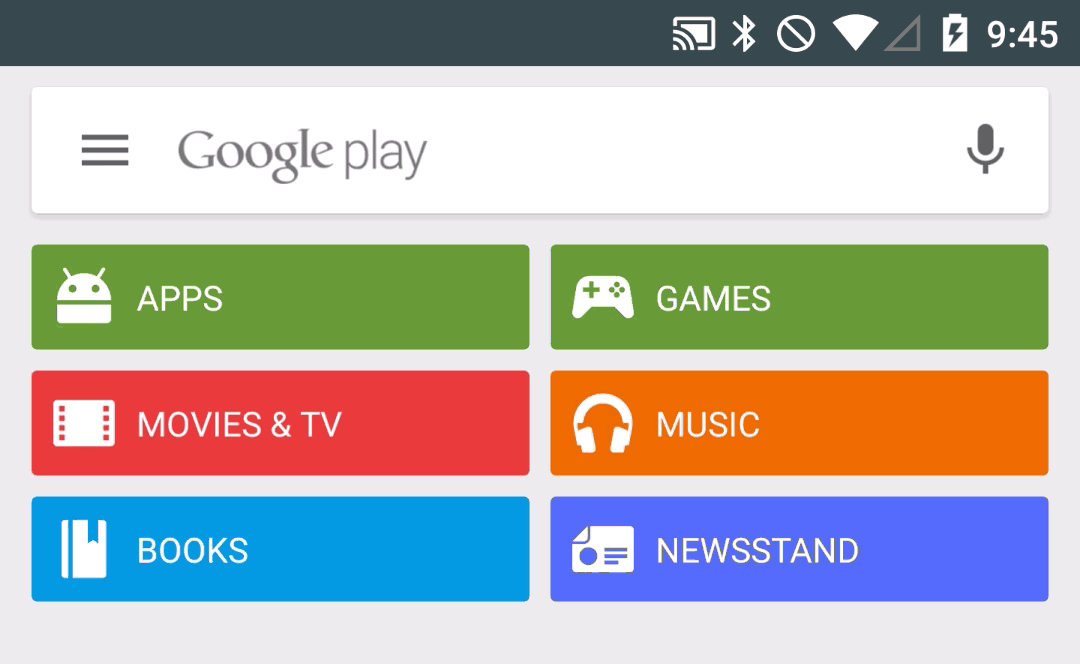
Google Play search bar animation.
Takeaway: Microinteractions act as facilitators for interactions, with feedback,notifications and instructions.
Conclusion
Steve Krug in his book Don’t Make Me Think proposed that we should lay out search controls in such a way that users can read their settings as an English (or any other language) sentence.
All moments specified above have one main goal — make search as simple as it could be for the end user. Search is vital and can save the day for many users.