Remote Development
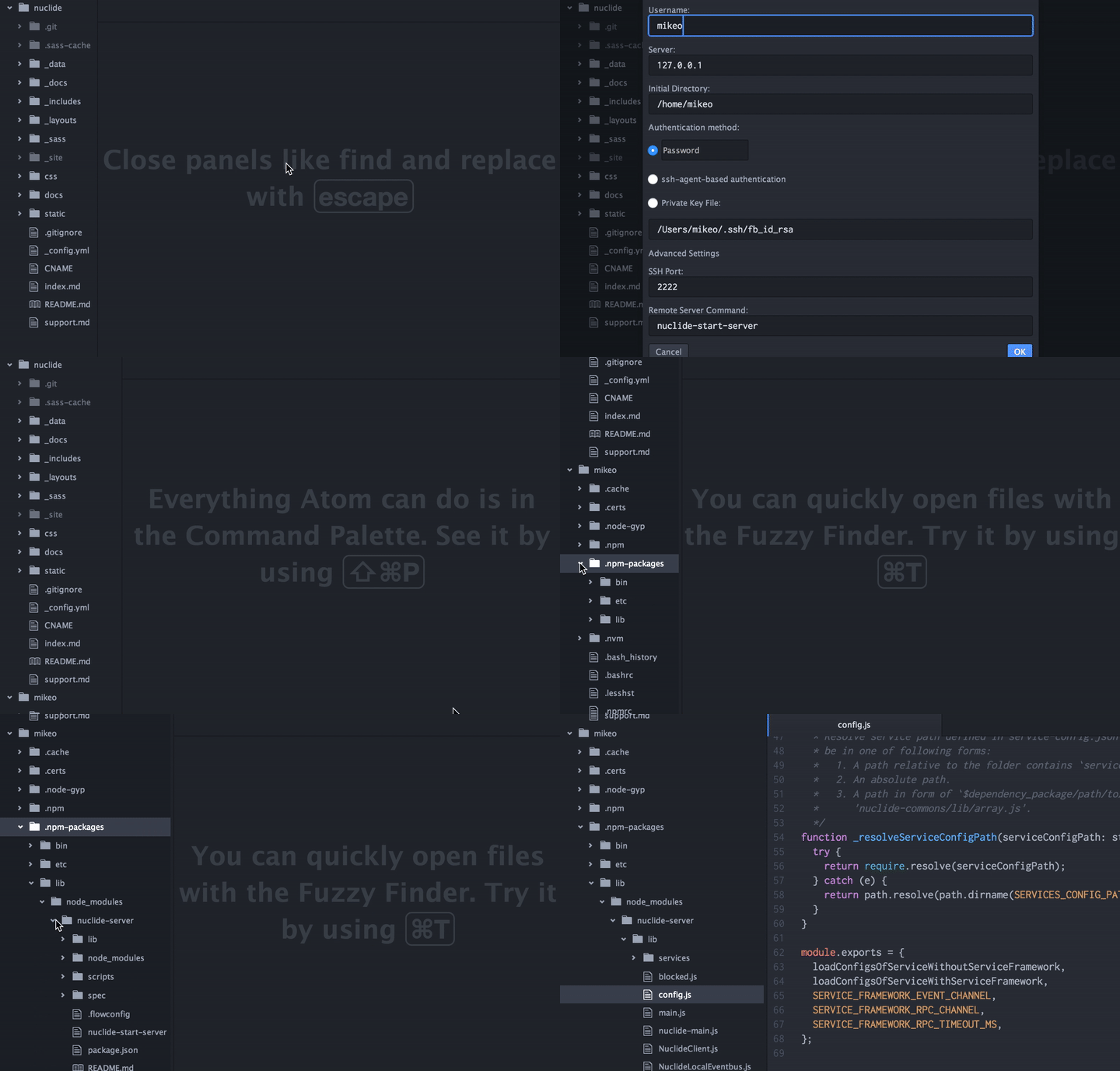
Connect to your remote servers, and get full access to the file tree within
Nuclide.
Get Started
Developing JavaScript

Improve the quality of your JavaScript with built in support for Flow,
including autocomplete, jump-to-definition, and inline errors.
Read More
Developing Hack

Nuclide is the first IDE with support for Hack, including autocomplete,
jump-to-definition, inline errors, and an omni-search bar for your project.
Read More
Mercurial Support
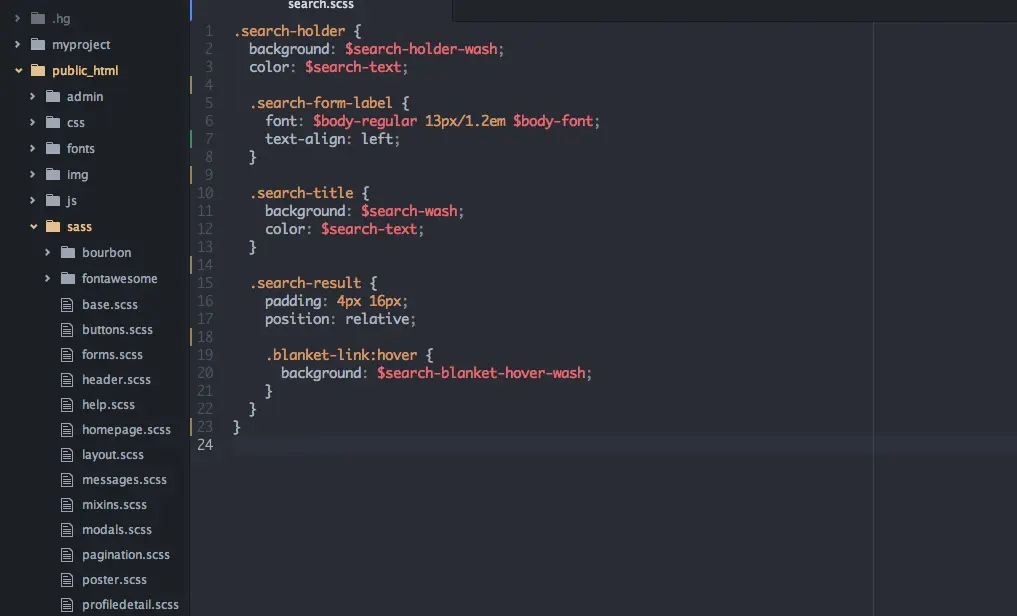
Local changes to files in a Mercurial repo will be reflected in Atom's
file tree and UI, as Atom does natively for Git repos.
Read More
Nuclide
Nuclide is a collection of packages for Atomto provide IDE-like functionality for a variety of programming languages and technologies.
Installation
To install a pre-built version of Nuclide, install the nuclide-installer package
in Atom. This package will ensure that you have the full set of Nuclide
packages.
If you have never installed an Atom package before, follow the package installation instructions from the Atom Flight Manual to do it through the Atom UI, or run the following from the command line:
apm install nuclide-installer
The first time you start Atom after installing the nuclide-installer package,
you will have to wait a few seconds for the installer to determine which
Nuclide packages it needs to install or update. To determine whether the
installer worked, go to the Settings view in Atom and select
the Packages tab. From there, filter your installed packages
by nuclide- and verify you see the packages listed in the next
section.
Features
Nuclide contains the following Atom packages:
nuclide-flowAdds support for Flow. Ifflowis on your$PATH, then opening.jsfiles with the/* @flow */pragma under a directory with a.flowconfigshould expose information from Flow directly in Atom.nuclide-hackAdds support for Hack by providing autocomplete and jump-to-definition functionality. Nuclide also includes anuclide-language-hackpackage so that Hack files are syntax highlighted correctly.nuclide-hg-repositoryLocal changes to files in a Mercurial repository will be reflected in Atom's file tree and gutter UI as Atom does natively for Git repositories.nuclide-remote-projectsadds support for remote development. See thenuclide-serverpackage for more information on setting up the server thatnuclide-remote-projectswill talk to so you can edit your foreign files in Nuclide. Note that this package is used in concert withnuclide-file-treeso that both local and remote files can be browsed from a familiar UI.nuclide-quick-openprovides an advanced file search UI with segmented search results.
Note that some Nuclide packages, such as nuclide-flow and nuclide-hack,
work better when the linter-plus package
is installed. Note that linter-plus is separate from Nuclide
and is ultimately supposed to merge with the linter package.
(There is also evidence that the linter package will eventually be bundled as part of Atom core.)
Repository Organization
Most developers choose to maintain individual Node and Atom packages in their own repositories. Because Nuclide is composed of so many packages, we chose to organize all of its code in a single repository rather than across a multitude of repositories. As such, this repository is organized as follows:
pkg/Source code for Nuclide packages.scripts/Utilities for developing and deploying Nuclide packages.
Building from Source
If you want to experiment with modifications to Nuclide's code, we recommend
that you build it from source. (Note that when you build from source, an
inert instance of the nuclide-installer package will be installed,
effectively disabling autoupdate for Nuclide packages. If you want to return
to an ordinary installation of Nuclide, run apm install nuclide-installer and
restart Atom to get it back.)
System Requirements
- Python 2.6 or later.
- Atom v0.209.0 or later.
node,npm,apm, andgitmust be on your$PATH. (Node must be v0.12.0 or later.)
Build and install Nuclide
Run the following command from the root of the repository:
./scripts/dev/setup
or if you are on Windows:
python scripts\dev\setup
If you see any errors, try running the setup script again with the --verbose flag
to get more debugging information.
The setup script will fetch the appropriate dependencies from npm and
perform any necessary build steps. When complete, you should see several nuclide- packages
in your ~/.atom/packages directory. Starting Atom after running ./scripts/dev/setup for
the first time may be a little slow because of the large number of Babel
files that need to be transpiled. (The results of transpilation are cached
for future use. You can see how many files were transpiled from Timecop.)
Some users have reported errors when re-running ./script/dev/setup.
(You should run this script whenever you add or remove a package, or change
the dependencies in a package.json file.) Although it should
not be necessary, running git clean -xfd to clear out stale
files has fixed the problem for a number of developers. (On Windows, sometimes git clean -xfd has
to be run several times to successfully delete the junctions created by
the setup script.) If all else fails, you may want to create a fresh clone
of Nuclide and run the setup script again from there.
Once you have everything set up, read the packages overview to learn more about how to develop Nuclide.