

Preparing an SVG for use on the web is a simple process and no more complicated that exporting a JPEG or PNG. Work as you typically would in your preferred vector graphics editor (Illustrator, Sketch, etc [or even Photoshop if you use shape layers]) with the graphic at the size that you expect to use it. You’ll probably want to convert any text to outlines as it most likely will not show in the correct font unless you plan on styling them with a web font you are using on the page (which you can do!). Don’t worry about expanding all your objects to solid shapes, particularly if you have strokes as you may want to manipulate these on the page and expanding them typically doesn’t make the file size any smaller. Any names you put on layers / groups will be added into the SVG as an ID on that element. This can be handy for styling, but will add a little to the overall file size.
To export, check that the design is sitting in an area of whole pixels
(i.e. not 23.3px × 86.8px) otherwise it may not actually be
crisp and then crop the artboard around it. You can do this in Illustrator
with Object > Artboards > Fit to Artwork Bounds. Next hit save as and
choose SVG and use the default settings. You can do some optimising
here, but it isn’t really worth it as we will be post-processing them to
optimise and any time spend playing with these settings is wasted.
Tips for smaller file sizes
(See the resources for external article links)
There are a number of good articles on SVG optimisation on the web which offer a wealth of knowledge on this subject, but I would like to share a few tips and tricks that I have found to be most effective and useful for me. They don’t take much extra work and can be easily added into your workflow.
To keep your SVGs as small as possible you effectively want to remove anything unnecessary. The most well known and best (at least I think so) tool to post process SVGs is SVGO. This strips out all the code that isnt’t needed — note: remember to be careful when using this if you plan to manipulate with CSS / JS as it can sometimes over-optimise your files making them harder to do what you planned to with them later on. A very handy thing with SVGO is it can be added to your build process so it is automatic (or you can use a GUI to do it yourself if you prefer).
Taking things a step further in ‘removing anything unnecessary’ we can
do some more in the graphics editor. First you want to make sure you are
using as few paths / shapes as possible to achieve what you want and also
that there as few points on these paths as possible. You want to combine
and simplify anything that you can. Then you want to remove as many points
from your paths as possible. VectorScribe is
an Illustrator plugin that has as part of it a Smart Remove Brush Tool —
this allows you to remove points whilst still keeping the overall shape
the same.
Pre optimisation
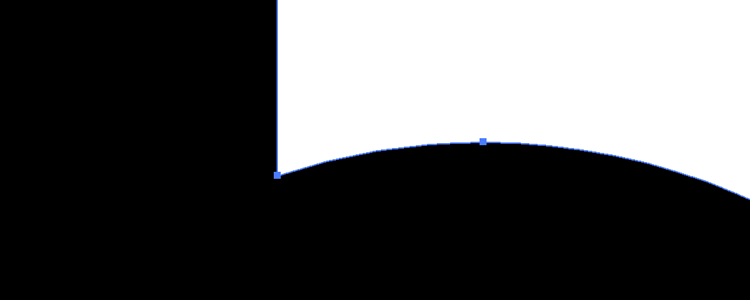
Smart Remove Brush Tool removed point

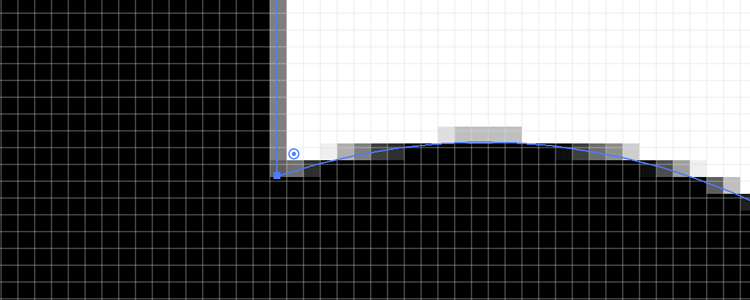
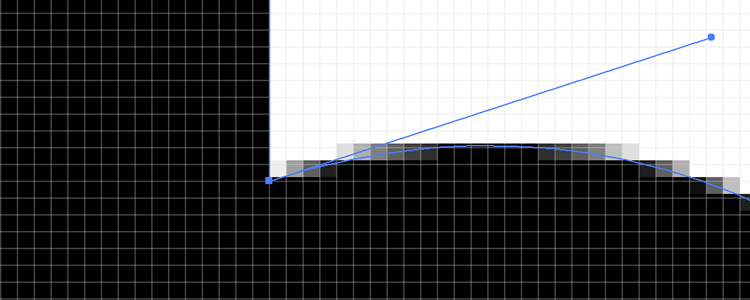
Next you are going to want to zoom in. In Illustrator you will want to
enable the Pixel Preview with View > Pixel Preview and take
a look at where your path points sit. For the smallest file sizes you want
these to sit on the pixel grid (i.e. at whole pixel values). This takes
a little bit of time to snap them all in place but is worth the extra bit
of effort as this also ensures the sharpest rendering (notice how before
you can end up with some half-pixel areas).
Points off pixels
Pixel snapped
If you have two (or more) shapes that align you will want to remove any
unneeded overlap. A thing to look out for is they can appear to have a
thin white line between them even if the paths align, so sometimes you
need to overlap them a little to prevent this. Note: in SVG the z-index is
defined by the order they appear in the file with the bottom being the
highest, so put the top shape at the bottom of the file in the code.

Last but not least, one thing that is often forgotten about, remember
to enable gzip compression for SVGs on your websites in the .htaccess file.
AddType image/svg+xml svg svgz


        AddOutputFilterByType DEFLATE "image/svg+xml" \
                                      "text/css" \
                                      "text/html" \
                                      "text/javascript"
                                      ... etc
As an example of how effective these techniques can be, I took the original Breaking Borderslogo and optimised it thusly: re-sized it to as large as it needed to be, tidied the paths, removed as many points as possible, moved the points to whole pixel values, removed as much of the overlapping area as possible, and put it through SVGO.
Original: 1,413b

Optimised: 409b

All in all that makes it ~71% smaller (and ~83% smaller if gzipped)
ADDITION: Rob Sterlini pointed
out that as the ‘b’ is repeated you could probably use a element
to repeat it which might make it smaller — and he was totally right.
Optimised further with : 311b

~78% smaller
If you do this to all the SVGs on a site it can really add up.
