

Introduction
Validating forms has notoriously been a painful development experience. Implementing client side validation in a user friendly, developer friendly, and accessible way is hard. Before HTML5 there was no means of implementing validation natively; therefore, developers have resorted to a variety of JavaScript based solutions.
To help ease the burden on developers, HTML5 introduced a concept known as constraint validation - a native means of implementing client side validation on web forms.
Yet, despite being available in the latest version of all major browsers, constraint validation is a topic largely relegated to presentations and demos. My goal in writing this is to shed some light on the new APIs to help developers make better web forms for everyone.
In this tutorial I will:
- Present a comprehensive overview of what constraint validation is.
- Dig into the current limitations of the spec and browser implementations.
- Discuss how you can use HTML5 constraint validation in your forms now.
What is Constraint Validation?
The core of constraint validation is an algorithm browsers run when a
form is submitted to determine its validity. To make this determination,
the algorithm utilizes new HTML5 attributes min, max, step, pattern,
and required as
well as existing attributes maxlength and type.
As an example take this form with an empty required text input:
If you attempt to submit this form as is, supporting browsers will prevent the submission and display the following:
- Chrome 21 查看图片
- Firefox 15
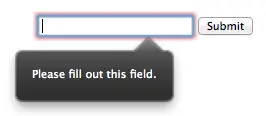
- Internet Explorer 10
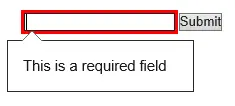
- Opera 12 查看图片
- Opera Mobile 查看图片
- Chrome for Android 查看图片
- Firefox for Android
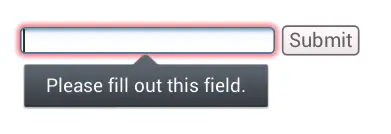
Per the spec how errors are presented to the user is left up to the browser itself. However, the spec does provide a full DOM API, new HTML attributes, and CSS hooks authors can use to customize the experience.
DOM API
The constraint validation API adds the following properties / methods to DOM nodes.
The willValidate property indicates whether the node is a candidate
for constraint validation. For submittable elements this
will be set to true unless for some reason the node is barred from constraint validation,
such as possessing the disabled attribute.
validity
The validity property
of a DOM node returns a ValidityState object
containing a number of boolean properties related to the validity of the
data in the node.
-
customError:trueif a custom validity message has been set per a call tosetCustomValidity(). -
patternMismatch:trueif the node'svaluedoes not match itspatternattribute. -
rangeOverflow:trueif the node'svalueis greater than itsmaxattribute. -
rangeUnderflow:trueif the node'svalueis less than itsminattribute. -
stepMismatch:trueif the node'svalueis invalid per itsstepattribute. -
tooLong:trueif the node'svalueexceeds itsmaxlengthattribute. All browsers prevent this from realistically occurring by preventing users from inputting values that exceed the maxlength. Although rare it is possible to have this property betruein some browsers; I've written about how that's possible here. -
typeMismatch:trueif an input node'svalueis invalid per itstypeattribute. -
valueMissing:trueif the node has arequiredattribute but has no value. -
valid:trueif all of the validity conditions listed above arefalse.
validationMessage
The validationMessage property of a DOM node contains the message
the browser displays to the user when a node's validity is checked and
fails.
The browser provides a default localized message for this property. If
the DOM node is not a candidate for constraint validation or if the node
contains valid data validationMessage will be set to an empty
string.
Note: As of this writing Opera does not fill in this property by default. It will show the user a correct error message, it just doesn't fill in the property.
checkValidity()
The checkValidity method on a form element node (e.g. input,
select, textarea) returns true if the element contains valid
data.
On form nodes it returns true if all of the form's children
contain valid data.
Additionally, every time a form element's validity is checked via checkValidity and
fails, an invalid event is fired for that node. Using the example
code above if you wanted to run something whenever the node with id input-1 was
checked and contained invalid data you could use the following:
document.getElementById('input-1').addEventListener('invalid', function() {
    //...
}, false);
There is no valid event, however, you can use the change event
for notifications of when a field's validity changes.
document.getElementById('input-1').addEventListener('change', function(event) {
    if (event.target.validity.valid) {
        //Field contains valid data.
    } else {
        //Field contains invalid data.
    }
}, false);
setCustomValidity()
The setCustomValidity method changes the validationMessage property
as well as allows you to add custom validation rules.
Because it is setting the validationMessage passing in an empty
string marks the field as valid and passing any other string marks the
field as invalid. Unfortunately there is no way of setting the validationMessage without
also changing the validity of a field.
For example, if you had two password fields you wanted to enforce be equal you could use the following:
if (document.getElementById('password1').value != document.getElementById('password2').value) {
    document.getElementById('password1').setCustomValidity('Passwords must match.');
} else {
    document.getElementById('password1').setCustomValidity('');
}
HTML Attributes
We've already seen that the maxlength, min, max, step, pattern,
and type attributes are used by the browser to constrain data.
For constraint validation there are two additional relevant attributes
- novalidate and formnovalidate.
novalidate
The boolean novalidate attribute can be applied to form nodes.
When present this attribute indicates that the form's data should not be
validated when it is submitted.
Because the above form has the novalidate attribute it will
submit even though it contains an empty required input.
formnovalidate
The boolean formnovalidate attribute can be applied to button
and input nodes to prevent form validation. For example:
When the "Validate" button is clicked form submission will be prevented
because of the empty input. However, when the "Do NOT Validate" button
is clicked the form will submit despite the invalid data because of the formnovalidate attribute.
CSS Hooks
Writing effective form validation is not just about the errors themselves; it's equally important to show the errors to the user in a usable way, and supporting browsers give you CSS hooks to do just that.
:invalid and :valid
In supporting browsers the :valid pseudo-classes will match
form elements that meet their specified constraints and the :invalid pseudo-classes
will match those that do not.
Resetting Default Styling
By default Firefox places a red box-shadow and IE10 places
a red outline on :invalid fields.
- Firefox 15
- Internet Explorer 10
WebKit based browsers and Opera do nothing by default. If you would like a consistent starting point you can use the following to suppress the defaults.
:invalid {
    box-shadow: none; /* FF */
    outline: 0;       /* IE 10 */
}
I have a pending pull request to discuss whether this normalization belongs in normalize.css.
Inline Bubbles
A larger display discrepancy is the look of the inline validation bubbles the browser displays on invalid fields. However, WebKit is the only rendering engine that gives you any means of customizing the bubble. In WebKit you can experiment with the following 4 pseduoclasses in order to get a more custom look.
::-webkit-validation-bubble {}
::-webkit-validation-bubble-message {}
::-webkit-validation-bubble-arrow {}
::-webkit-validation-bubble-arrow-clipper {}
Removing the Default Bubble
Because you can only customize the look of the bubbles in WebKit, if you want a custom look across all supporting browsers your only option is to suppress the default bubble and implement your own. The following will disable the default inline validation bubbles from all forms on a page.
var forms = document.getElementsByTagName('form');
for (var i = 0; i
If you do suppress the default bubbles make sure that you do something to show errors to users after invalid form submissions. Currently the bubbles are the only means by which browsers indicate something went wrong.
Current Implementation Issues and Limitations
While these new APIs bring a lot of power to client side form validation, there are some limitations to what you are able to do.
setCustomValidity
For simply setting the validationMessage of a field setCustomValidity works, but as forms get more complex a number of limitations of the setCustomValidity method become apparent.
Problem #1: Handling multiple errors on one field
Calling setCustomValidity on a node simply overrides its validationMessage. Therefore, if you call setCustomValidity on the same node twice the second call will simply overwrite the first. There is no mechanism to handle for an array of error messages or a way of displaying multiple error messages to the user.
One way of handling this is to append additional messages to the node's validationMessage as such.
var foo = document.getElementById('foo');
foo.setCustomValidity(foo.validationMessage + ' An error occurred');
You cannot pass in HTML or formatting characters so unfortunately concatenating
strings can leave you with something like this:
查看图片
Problem #2: Knowing when to check the validity of a field
To illustrate this issue consider the example of a form with two password
input fields that must match:
Change Your Password
-
Password 1:
-
Password 2:
My suggestion earlier was to use the change event to implement
the validation, which looks something like this:
var password1 = document.getElementById('password1');
var password2 = document.getElementById('password2');
var checkPasswordValidity = function() {
if (password1.value != password2.value) {
password1.setCustomValidity('Passwords must match.');
} else {
password1.setCustomValidity('');
}
};
password1.addEventListener('change', checkPasswordValidity, false);
password2.addEventListener('change', checkPasswordValidity, false);
Try It
Now, whenever the value of either password field is changed by the user
the validity will be reevaluated. However, consider a script that automatically
fills in the passwords, or even a script that changes a constraint attribute
such as pattern, required, min, max,
or step. This could absolutely affect the validity of the password
fields, yet, there is no event to know that this has happened.
Bottom Line: We need a means of running code whenever a field's validity might have changed.
Problem #3: Knowing when a user attempts to submit a form
Why not use the form's submit event for the problem described
above? The submit event is not fired until after the browser
has determined a form contains valid data given all of its specified constraints.
Therefore, there is no way of knowing when a user attempts to submit a
form and it is prevented by the browser.
It can be very useful to know when a submission attempt occurs. You may
want to show the user a list of error messages, change focus, or display
help text of some sort. Unfortunately, you'll need a workaround to make
this happen.
One way to accomplish this is by adding the novalidate attribute
to the form and use its submit event. Because of the novalidate attribute
the form submission will not be prevented regardless of the validity of
the data. Therefore, the client script will have to explicitly check whether
the form contains valid data in a submit event and prevent submission
accordingly. Here's an extension of the password match example that enforces
that the validation logic will run before the form is submitted.
Change Your Password
-
Password 1:
-
Password 2:
Try It
The major disadvantage of this approach is that adding the novalidate attribute
to a form prevents the browser from displaying the inline validation bubble
to the user. Therefore, if you use this technique you must implement your
own means of presenting error messages to the user. Here is a simple example showing
one way of accomplishing this.
Bottom Line: We need a forminvalid event that would be fired
whenever a form submission was prevented due to invalid data.
Safari
Even though Safari supports the constraint validation API, as of this
writing (version 6), Safari will not prevent submission of a form with
constraint validation issues. To the user Safari will behave no differently
than a browser that doesn't support constraint validation at all.
The easiest way around this is to use the same approach as the workaround
described above, give all forms the novalidate attribute and
manually prevent form submissions using preventDefault. The
following code adds this behavior to all forms.
var forms = document.getElementsByTagName('form');
for (var i = 0; i
Try It
Note: There are several documented bugs where the checkValidity method returns false positives (see here and here for examples). False positives are especially dangerous with the above workaround because the user will be stuck on a form with valid data, so use caution.
Declarative Error Messages
While you have the ability to change a field's error message by setting its validationMessage through setCustomValidity, it can be a nuisance to continuously setup the JavaScript boilerplate to make this happen, especially on large forms.
To help make this process easier, Firefox introduced a custom x-moz-errormessage attribute that can be used to automatically set a field's validationMessage.
Try It
When the above form is submitted in Firefox the user will see the custom
message instead of the browser's default.
查看图片
This feature was proposed to the W3C but
was rejected. Therefore, at the moment Firefox is the only browser where
you can declaratively specify error messages.
Title Attribute
While it doesn't change the validationMessage, in the case
of a patternMismatch browsers do display the contents of the title attribute
in the inline bubble if it's provided. (Note: Chrome will actually display the title attribute when provided for any type of error, not just patternMismatches.)
For example if you try to submit the following form:
Price: $
Try It
Here's a sampling of what browsers will display:
:invalid and :valid
As discussed earlier the :valid pseudo-class will match form
elements that meet all specified constraints and the :invalid pseudo-class
will match those that do not. Unfortunately these pseudo-classes will be
matched immediately, before the form is submitted and before the form is
interacted with. Consider the following example:
:invalid {
border: 1px solid red;
}
:valid {
border: 1px solid green;
}
Try It
The goal here is to simply place a red border around invalid fields and
a green border around valid ones, which it does immediately as the form
is rendered. However, usability tests of inline form validation have
shown that the best time to give user feedback is immediately after they
interact with a field, not before.
One way to accomplish this with the example above is to add a class to
the inputs after they have been interacted with and only apply the borders
when the class is present.
.interacted:invalid {
border: 1px solid red;
}
.interacted:valid {
border: 1px solid green;
}
Try It
In supporting browsers there will be no difference in the result. However,
browsers that don't support constraint validation natively will now prevent
invalid form submissions and display an error message in a custom bubble.
For example here's what the user will see in Safari and IE8.
- Safari 6
- Internet Explorer 8 查看图片
In addition to polyfilling, Webshims also provides solutions for many of the limitations of constraint validation discussed earlier.
- Declaratively specify error messages through a
data-errormessageattribute. - Provides classes
form-ui-validandform-ui-invalidwhich work similarly to:-moz-ui-validand:-moz-ui-invalid. - Provides custom events
firstinvalid,lastinvalid,changedvalid, andchangedinvalid. - Includes workarounds for WebKit false positives on form submission.
For more information on what Webshims provides refer to its HTML5 forms docs.
H5F
H5F is a lightweight, dependency free polyfill that implements the full constraint validation API as well as a number of the new attributes.
To see how to use H5F let's add it to our basic example of a form with
a single required text input.
H5F will prevent the submission of the form in all browsers, but the user will only see an inline validation bubble in browsers that support it natively. Since H5F polyfills the full constraint validation API you can use it to implement your own UI to do whatever you'd like.
If you're looking for some examples of how to leverage the API, H5F's demo page has an implementation that shows the messages in a bubble on the right hand side of the inputs. I also have an example that shows how you can show all error messages in a list at the top of forms.
In addition to polyfilling the constraint validation API, H5F also provides
classes to mimic :-moz-ui-valid and :-moz-ui-invalid.
By default these classes are valid and error although
they can be customized by passing in a second parameter to H5F.setup.
H5F.setup(document.getElementById('foo'), {
    validClass: 'valid',
    invalidClass: 'invalid'
});
For more information on H5F check it out on Github.
Conclusion
HTML5's constraint validation APIs make adding client side validation to forms quick while providing a JavaScript API and CSS hooks for customization.
While there are still some issues with the implementations and old browsers to deal with, with a good polyfill or server-side fallback you can utilize these APIs in your forms today.

